

Applications list
Every application across all your jobs — find what is waiting on you.
Applications in the sidebar lists every application across all your jobs in one place, so you can see what is waiting on you without opening each job. Click any candidate to open their application.
Applications vs a job's applicants
The page
The header counts your applications, the jobs they belong to, and how many are waiting on you — those in Needs review or Decision due.
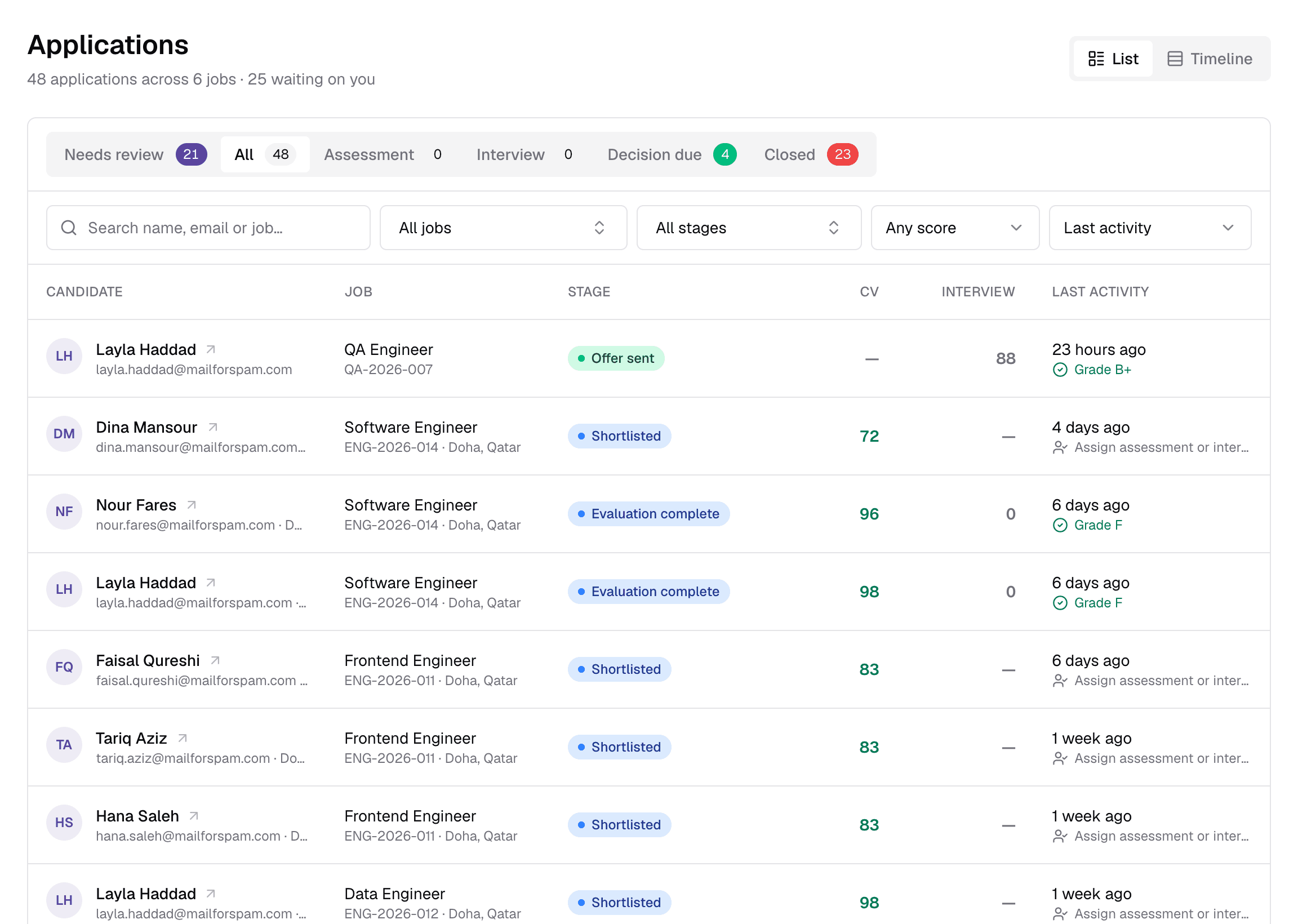
- 1List / Timeline
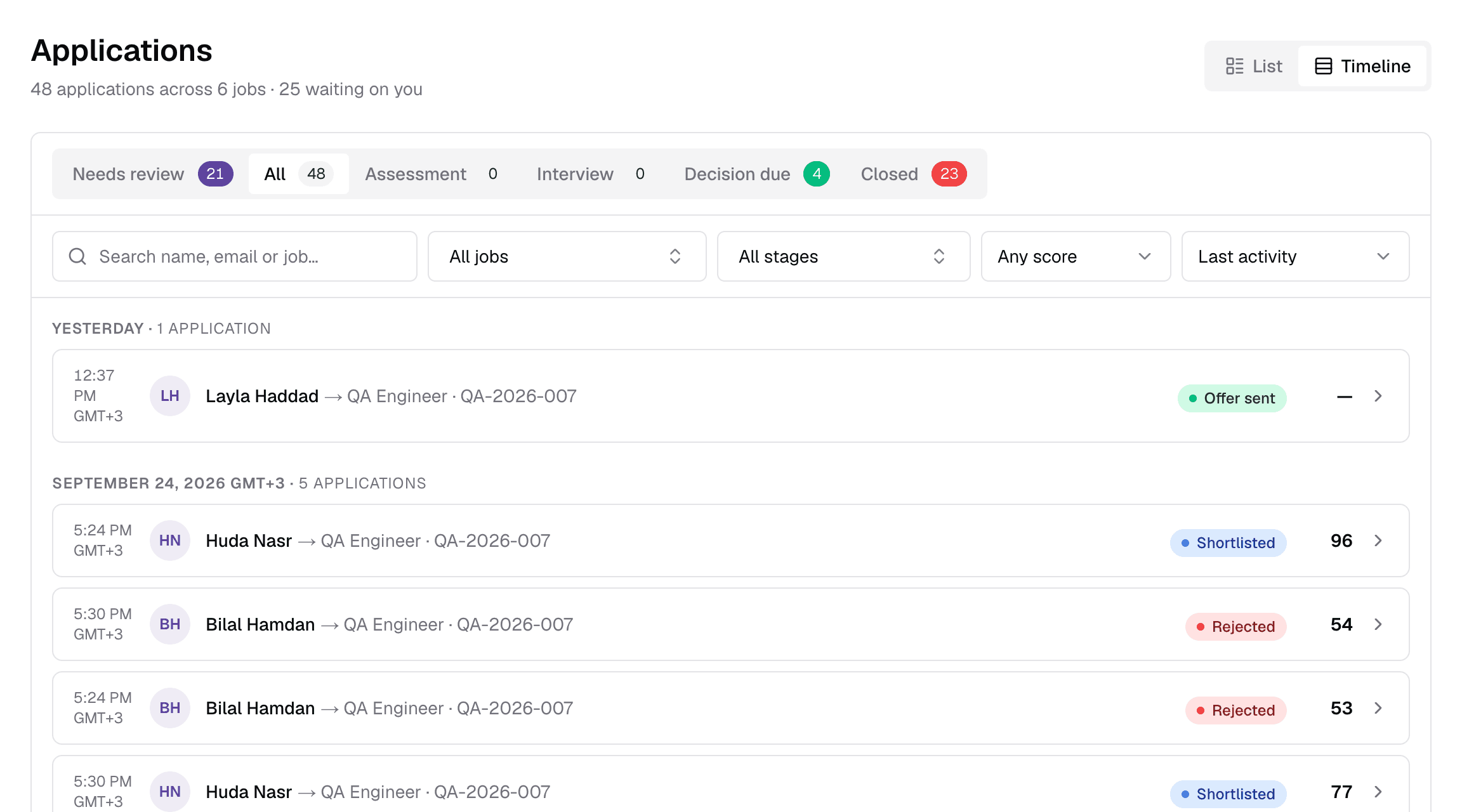
- List is the table below. Timeline groups applications by the day they arrived — Today, Yesterday, and so on.
- 2Stage tabsNeeds review · All · Assessment · Interview · Decision due · Closed
- Each tab groups several statuses — hover a tab to see which. The badge shows how many applications are in it.
- 3Search
- Find by candidate name, email, job title or Job Reference.
- 4Job
- Show one job's applications. Type to search; the 20 most recently active jobs are listed first.
- 5Stage
- Narrow to a single status within the tab.
- 6ScoreAny score · ≥ 90 · ≥ 80 · ≥ 70 · ≥ 60 · ≥ 50
- Only show applications with at least this CV score.
- 7SortLast activity · Newest applied · Highest CV score
- Last activity puts the applications that changed most recently first.
- 8Stage
- The application's current status.
- 9CV
- The AI's CV score. Green is at or above the job's CV threshold, amber within 15 points below, red further below. The Interview column next to it shows the evaluated interview score.
- 10Last activity
- When it last changed, and a one-line hint of what needs to happen next — see below.
Active filters appear as chips under the filter bar; remove one with its × or use Clear all. Filters are kept in the page address, so you can bookmark or share a filtered view. Use the footer to page through results and show 10, 20, 50 or 100 per page.
What each tab holds
Next-step hints
Under Last activity, each row shows the single most useful thing to know, in this order of priority:
Timeline view
Switch to Timeline to see applications in the order they arrived, grouped by day — useful for a morning check of what came in.
- Applications waiting for email verification are not listed until the candidate confirms their email.
- A red or amber shield next to a name means the CV authenticity check flagged it.
Still have questions?
Pick a question — ChatGPT reads this page and answers it for you.