

Job detail
The page for one job: summary, applicants, scores, pipeline board and tabs.
Click any job in Jobs to open its detail page. This is where you run the hiring for that role: add candidates, watch the AI score them, invite the best to interview and make offers. Every action on this page is described in Job actions.
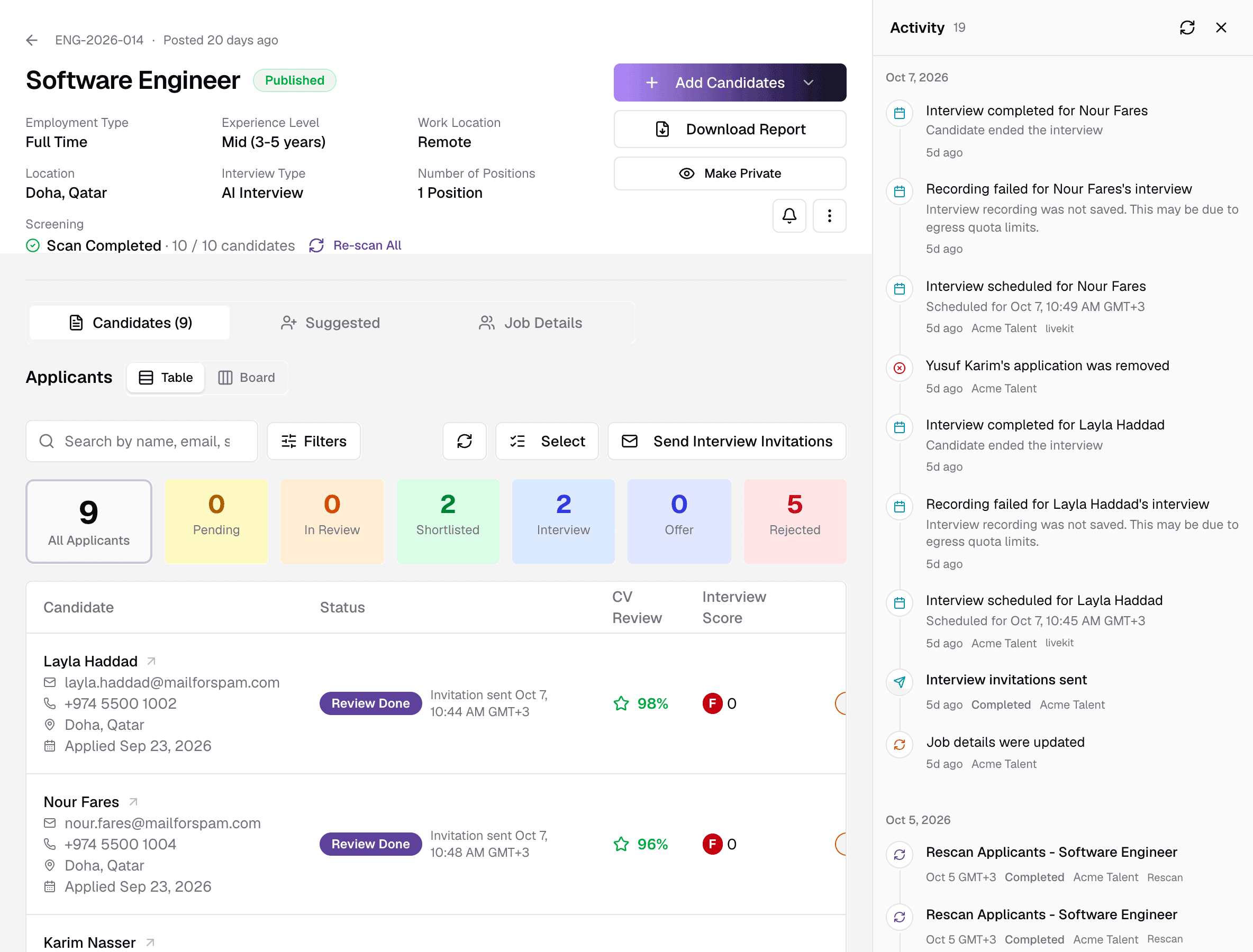
Job summary
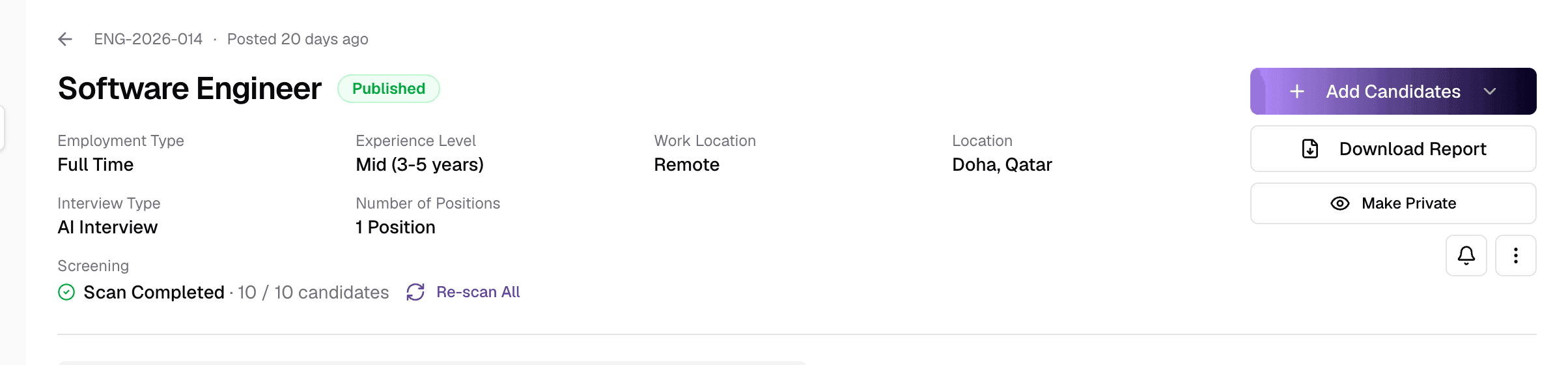
- 1Reference and dates
- The Job Reference, when the job was posted and, if set, when it closes. The arrow takes you back to Jobs.
- 2StatusPublished · Draft · Closed
- Drafts show a switch here to publish them. Closed jobs show the reason they were closed.
- 3Job facts
- Employment type, experience level, work location, location, interview type, salary and number of positions — whatever you filled in on the form.
- 4Screening
- Progress of the AI review of all applicants, such as Scan Completed · 10 / 10 candidates. Re-scan All reviews every CV again.
- 5Add Candidates
- Upload CVs or import candidates from your pool.
- 6Download Report
- A PDF report of the job's applicants.
- 7Make Private / Make Public
- Hide the job from its public page, or show it again. Existing applications are not affected.
- 8Activity
- Opens or closes the timeline of everything that happened on this job.
- 9More actions (⋮)
- Edit, share, embed, upload history, rescan, close and delete.
Tabs and toolbar
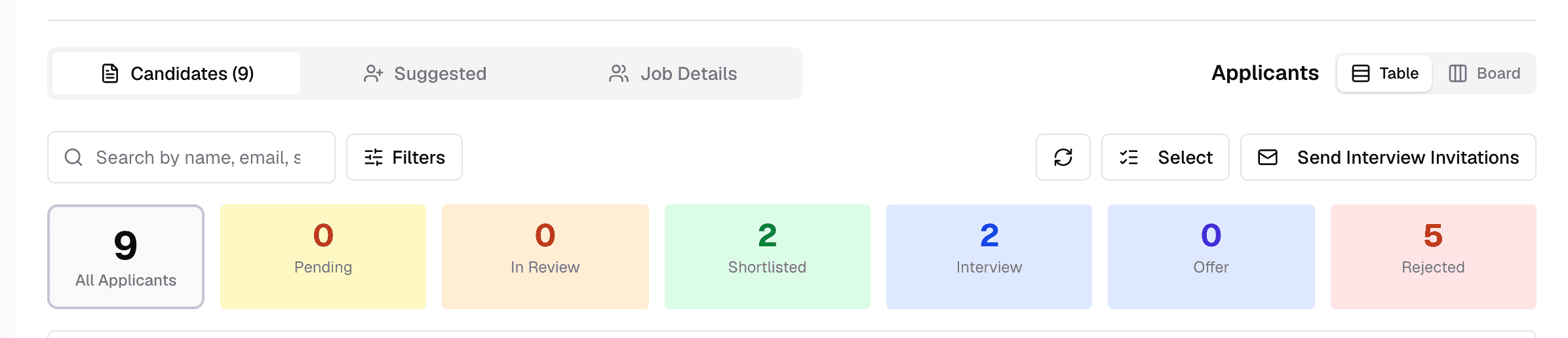
- 1Candidates
- Everyone who applied or was added, with their scores.
- 2Suggested
- People already in your candidate pool whom the AI matches to this job, even though they never applied. Select them and choose Add to Hiring.
- 3Job Details
- The job's description, requirements, skills and benefits, and for AI Interview jobs the interview settings and questions.
- 4Table / Board
- Switch between a list and a pipeline board.
- 5Search
- Find applicants by name, email, skill or language.
- 6Filters
- Narrow by status, country or interview deadline, and sort by AI score or deadline.
- 7Select
- Pick several applicants to compare, download their CVs or remove them.
- 8Send Interview Invitations
- AI Interview jobs only. Invite shortlisted candidates to their AI interview in one go.
- 9Status counts
- How many applicants are at each stage of your process.
Applicants
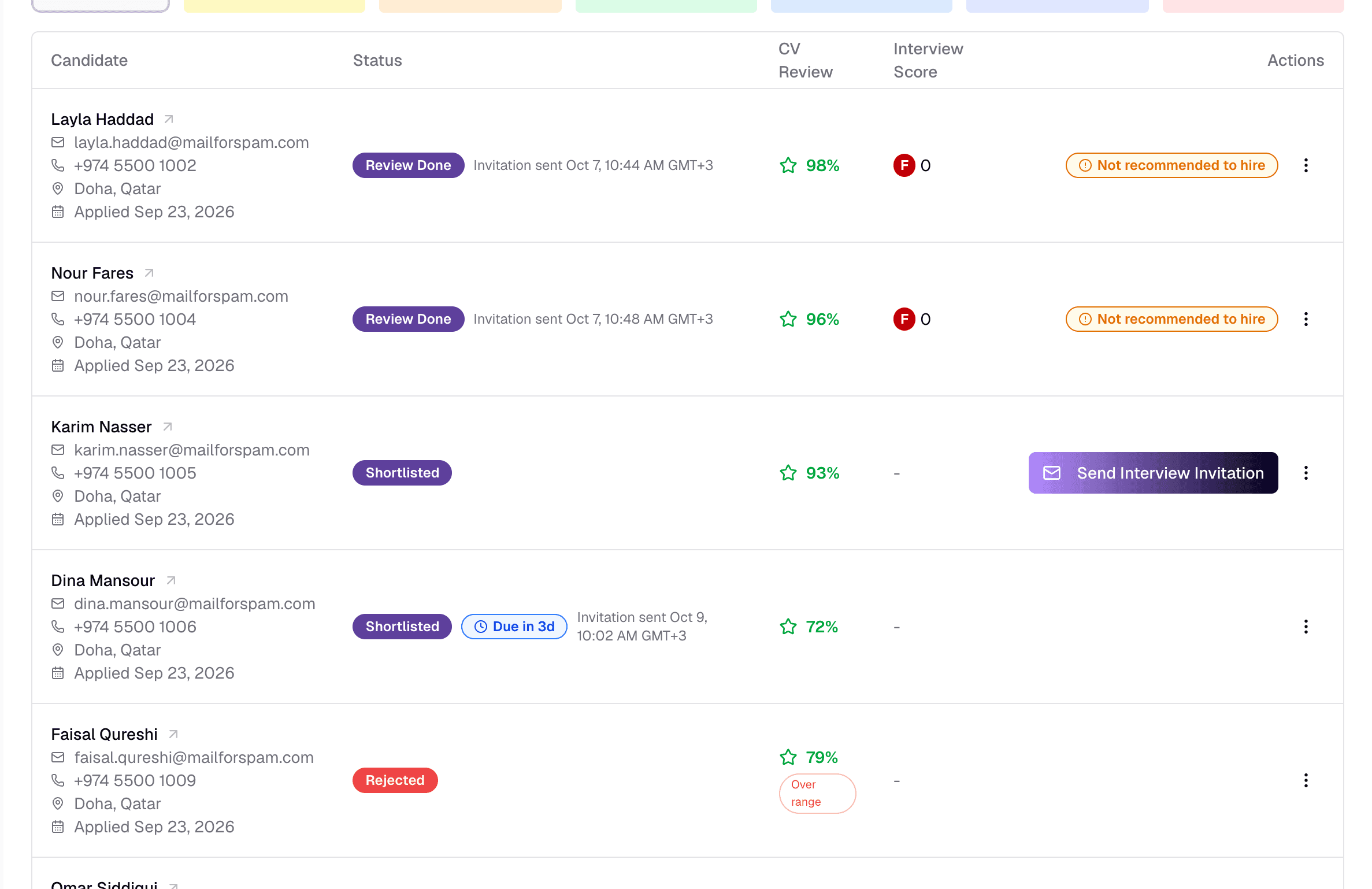
- 1Candidate
- Name, email, phone, location and application date. Click the name to open the full application.
- 2Status
- Where the candidate is in your process, plus any interview deadline or invitation date.
- 3CV Review
- The AI's CV score out of 100. Green means at or above this job's CV threshold, amber within 15 points below it, red further below.
- 4Interview Score
- The interview grade and score out of 100, once evaluated.
- 5Experience badgeOver range · Under range · Exp. unknown
- The candidate's experience is outside the job's Experience Level range. What that does depends on the range handling you chose.
- 6Next step
- The button for this candidate's next step, such as Send Interview Invitation or Send Offer. A Not recommended to hire badge appears when the evaluation advises against hiring.
- 7Candidate menu (⋮)
- Everything else for this candidate — see Actions on one candidate.
Applicant statuses
When candidates are emailed
Board view
Choose Board to see applicants as cards in pipeline columns.
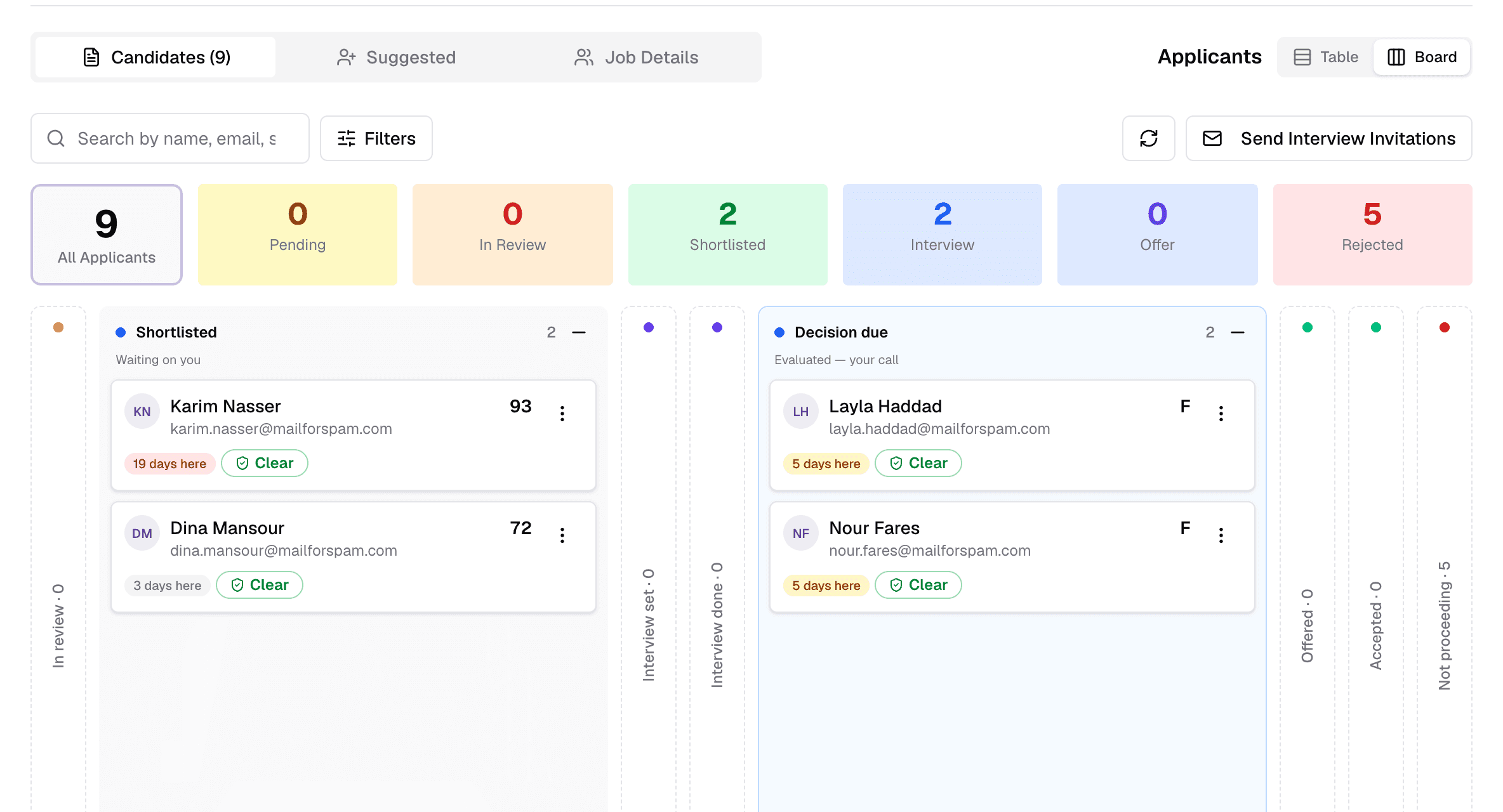
- Cards move on their own as things happen — a CV is scored, an assessment or interview is completed, an offer is sent. You cannot drag them.
- To move a candidate yourself, use the card's ⋯ menu: Change Status → Move to Shortlisted or Move to Rejected.
- Cards also show a fraud-check badge — Clear, Review or High risk. It is a warning to look closer and never changes a score.
- Accepted and Not proceeding start collapsed.
Job Details tab
Shows the job as you wrote it. For AI Interview jobs it also holds the interview setup:
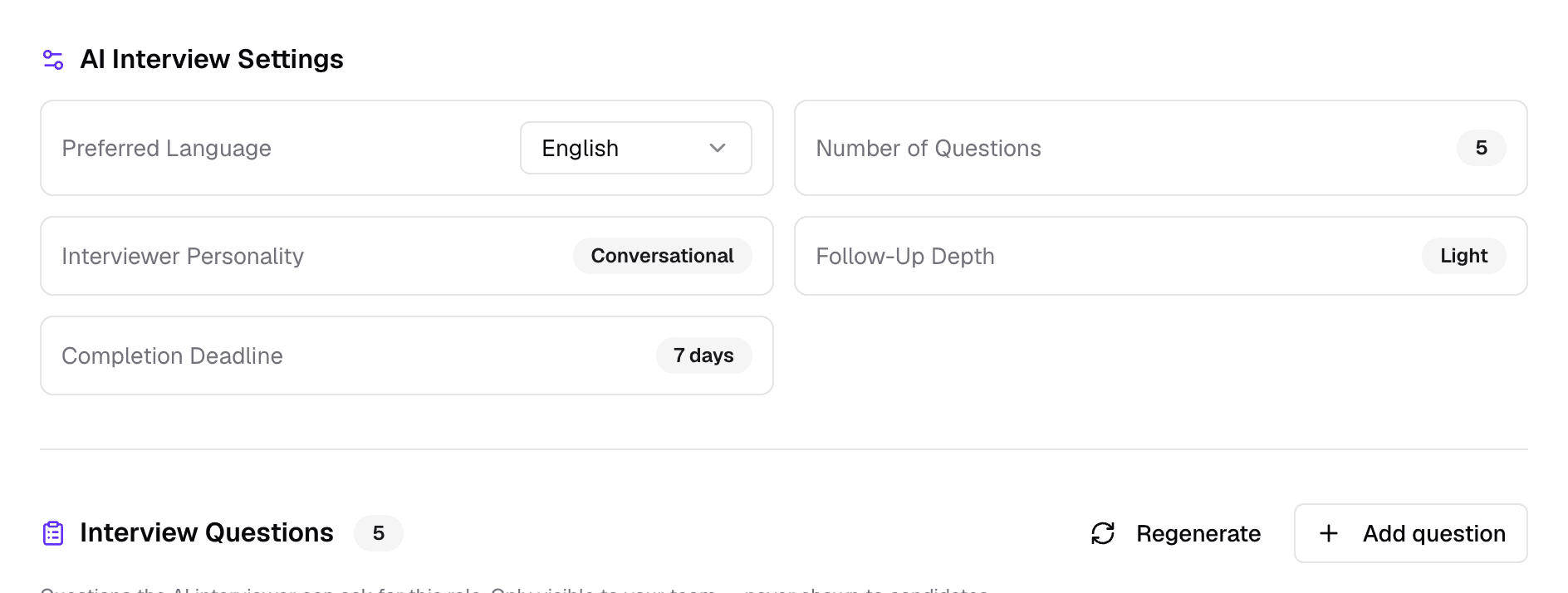
AI Interview Settings
You can switch the Preferred Language here. The other settings — number of questions, personality, follow-up depth and deadline — are changed by editing the job.
Interview Questions
- Generated by the AI from your job description, requirements, skills and hiring brief. Only your team sees them.
- Edit or delete any question, or Add question to write your own, then Save changes.
- Regenerate replaces them with a fresh set — for example after you change the job.
- Each question has a category: Technical, Soft skills, Creative, Administrative or Behavioral.
Questions may be outdated
Activity
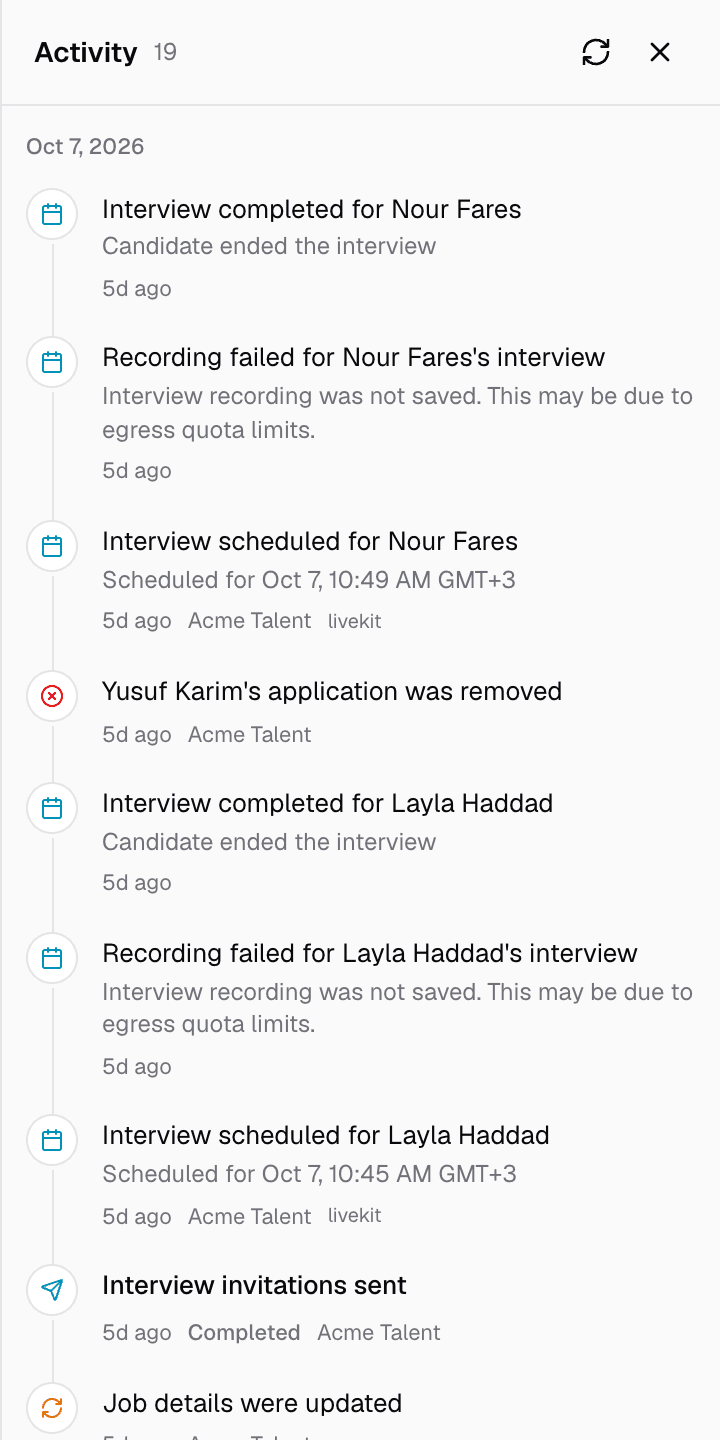
The Activity panel on the right lists everything that happened on the job, newest first: applications, CV uploads, rescans, invitations, interviews, status changes and emails. The bell button in the job summary shows or hides it.
Still have questions?
Pick a question — ChatGPT reads this page and answers it for you.