

Job actions
Add candidates, invite to interview, share, embed, close, reopen and more.
Everything you can do from a job's detail page, grouped by where the button is. Actions that change a job are unavailable once it is closed — reopen it first.
Add Candidates
Shown while the job is published. Candidates you add are scored by the AI exactly like people who applied themselves.
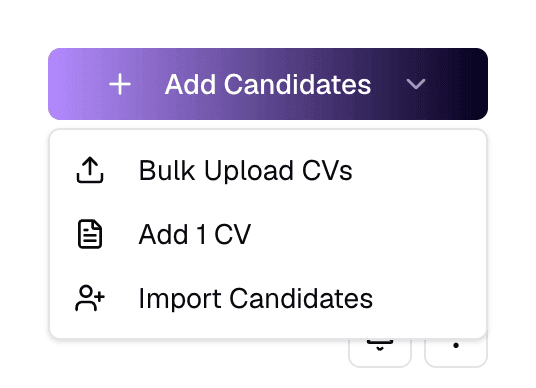
- 1Bulk Upload CVs
- Drop up to 400 CVs (PDF or DOCX, up to 5 MB each), or a whole folder. Duplicates, empty and oversized files are flagged before upload. Processing continues in the background.
- 2Add 1 CV
- Add a single candidate: their CV (PDF, DOC or DOCX, up to 5 MB), first and last name, email, and optionally phone and cover letter.
- 3Import Candidates
- Pick people already in your candidate pool, filtered by name, location or skills. Candidates already on this job are marked.
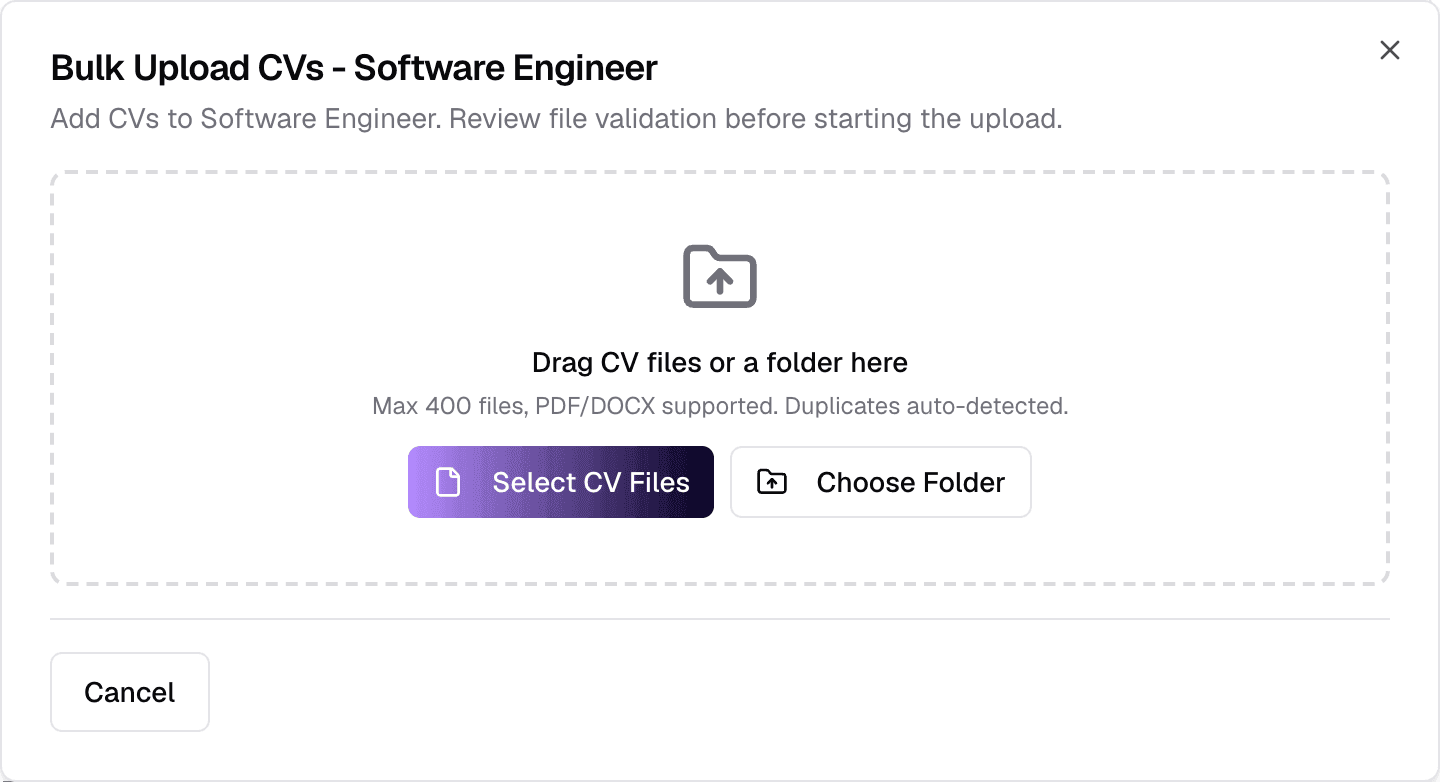
What happens after a CV is added
- The AI reviews the CV against the job and gives it a score.
- At or above the CV threshold: the candidate is Shortlisted — or, if the job has an assessment, moves to Awaiting Assessment and is emailed the test.
- Below the threshold: the candidate is Rejected (silently).
- Screening uses AI credit.
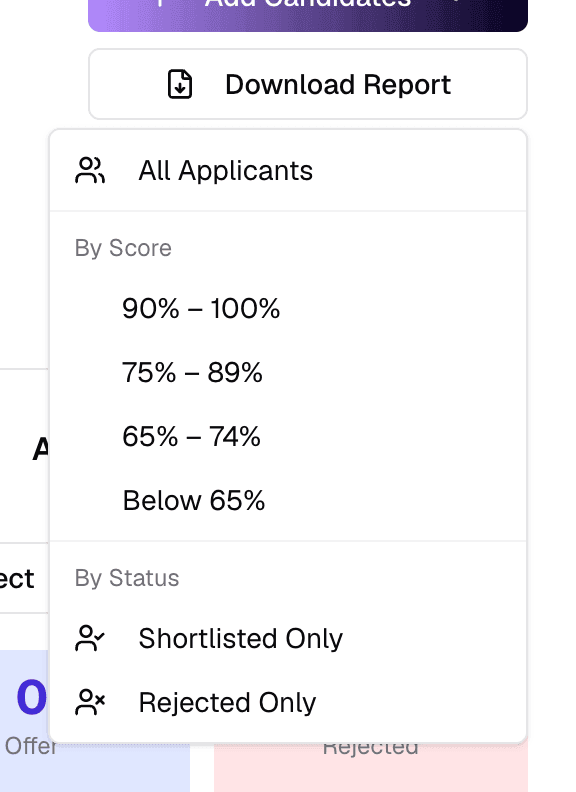
Download Report
A PDF of the job and its applicants. Choose All Applicants, a score band (90–100%, 75–89%, 65–74%, below 65%), or Shortlisted Only / Rejected Only.
Make Private / Make Public
Making a job private stops it from being shown publicly. It stays open, and existing applications are not affected. Make it public again at any time. Only published jobs have this button.
More actions (⋮)
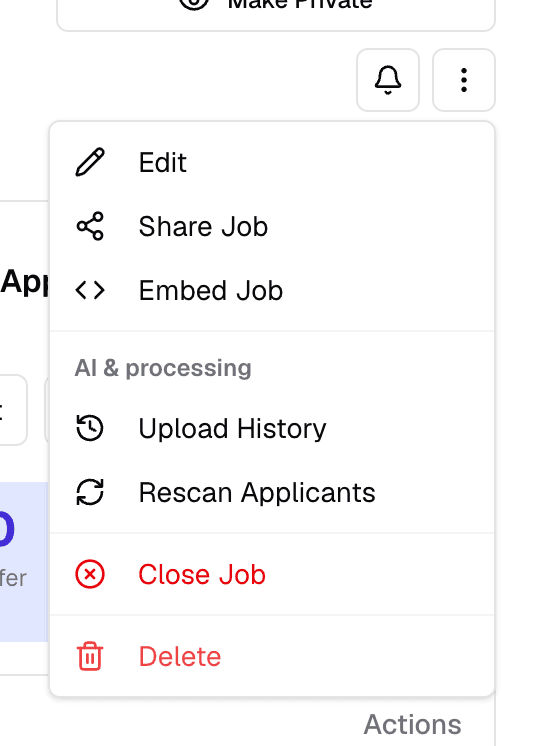
- 1Edit
- Open the job form. See Edit a job.
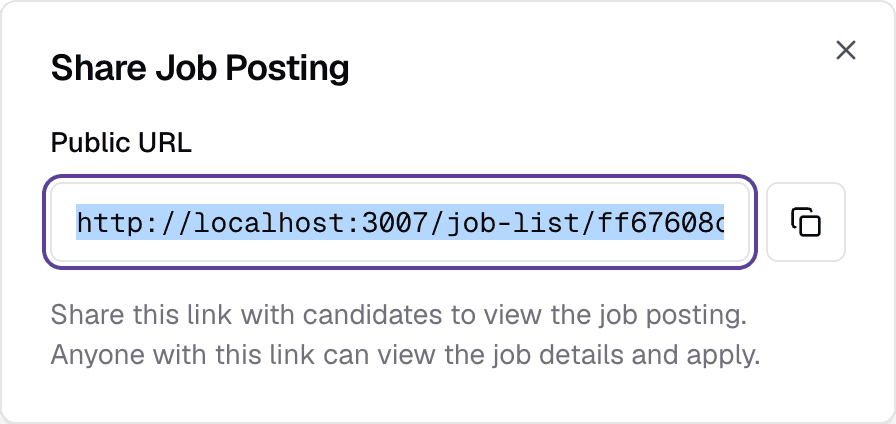
- 2Share Job
- Copy the public link to the job's application page. Available while the job is public.
- 3Embed Job
- Get code to show this job on your own website.
- 4Upload History
- Past bulk uploads, with the option to re-upload files that failed.
- 5Rescan Applicants
- Have the AI review every applicant's CV again, for example after changing requirements. Uses AI credit.
- 6Close Job
- Stop accepting applicants — see Close a job below.
- 7Delete
- Permanently delete the job. Only possible while it has no applications; otherwise close it.
Share Job
Embed Job
Puts this job on your careers site in a frame. You need an API key with an embed token — the dialog offers to create one.
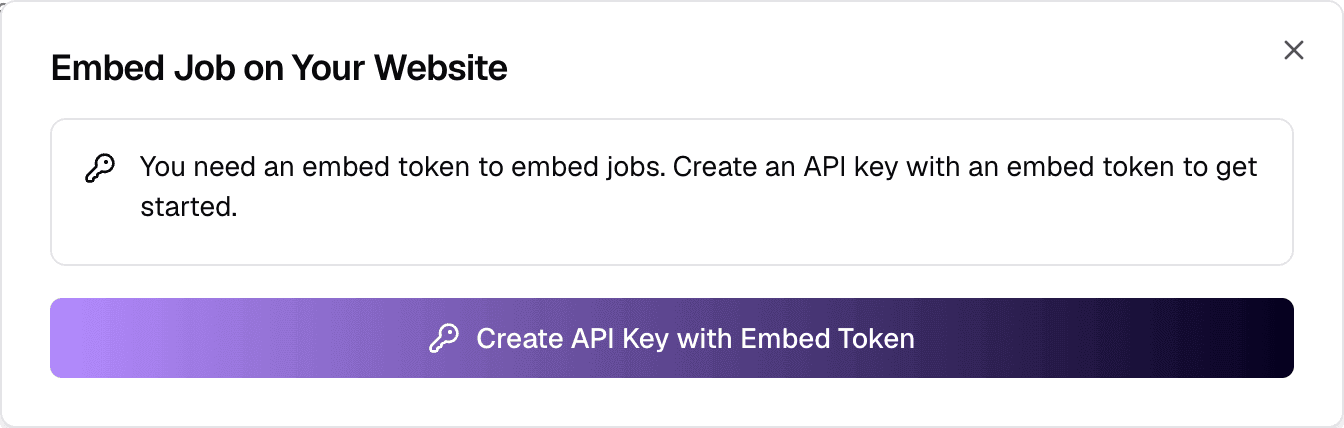
- Embed with API key — which key the embed code uses.
- Allowed domains — the websites allowed to show the job, such as
acme.comor*.acme.com. With no domains added, the embed shows nowhere. - Width and Height, then Copy Code and paste it into your page.
Keep the key
Inviting candidates to interview
AI Interview jobs
- Click Send Interview Invitations above the applicants, or the invite button on a shortlisted candidate's row.
- Tick the candidates to invite — Select all awaiting an invitation picks everyone eligible. Candidates already invited, or not shortlisted, are greyed out with the reason.
- Each candidate gets an email with their interview link. Their deadline (the job's completion deadline) starts when you send.
Face-to-Face jobs
On a shortlisted candidate's row, the invite button opens Schedule Interview:
- Date, Time, Duration, Time ZoneRequired
- When the interview happens.
- Meeting PlatformOptionalGoogle Meet · Microsoft Teams · Zoom · In-Person · Phone
- How it happens. For video platforms, paste a Meeting Link or Generate one; for In-Person, add a Location.
- Interviewer EmailsOptional
- Each interviewer is emailed the invitation.
- AI Meeting AssistantOptionalSwitch
- Turn on the AI meeting assistant for this interview.
- NotesOptional
- Anything the candidate or interviewers should know.
After the interview, use Complete Interview on the row to record the outcome and evaluation.
Actions on one candidate
Each applicant row has buttons for the next step and a ⋯ menu with everything else.
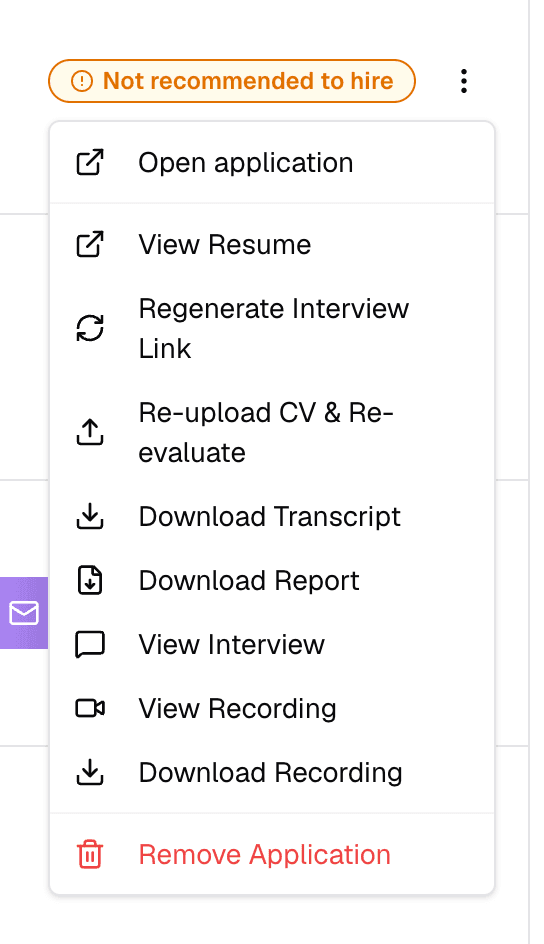
- Open application
- The full application: CV review, interview, assessment and history.
- View Resume
- Open the candidate's CV.
- Verify CV authenticity
- Run the fraud check on the CV. The result is advice only and never changes a score.
- Copy Interview Link / Copy Assessment Link
- Copy the candidate's personal link, for example to resend it yourself.
- Regenerate Interview Link
- Cancel the current AI interview and return the candidate to Shortlisted so you can invite them again. No email is sent.
- Re-upload CV & Re-evaluate
- Replace the CV with a newer one and score it again.
- View history
- Every status change and re-evaluation, with reasons.
- Downloads
- Offer letter, interview transcript, candidate report and interview recording, when they exist.
- Change StatusMove to Shortlisted · Move to Rejected
- Override the AI. You are asked for a reason, which is kept in the candidate's history.
- Remove Application
- Remove the candidate from this job. Not available once an offer has been sent.
Rejecting after the shortlist
Working with several candidates
Click Select, tick candidates, and use the bar that appears:

- Compare — 2 to 5 candidates side by side.
- Download CVs — the selected CVs as one ZIP file.
- Delete — remove the selected applications from this job. The candidates stay in your pool. Not possible for anyone with an offer.
Offers
- When an evaluated candidate is recommended to hire, their row shows Send Offer: salary, currency and frequency, start date, contract end, offer expiry, benefits and a message.
- Record the answer with Mark Accepted or Mark Declined. Accepting emails the candidate a confirmation.
- After sending an offer, Truepick asks whether to close the job. Choose Keep Open if you are hiring more than one person.
Close a job
Closing stops new applications and locks the job's pipeline. Open ⋮ More actions → Close Job:
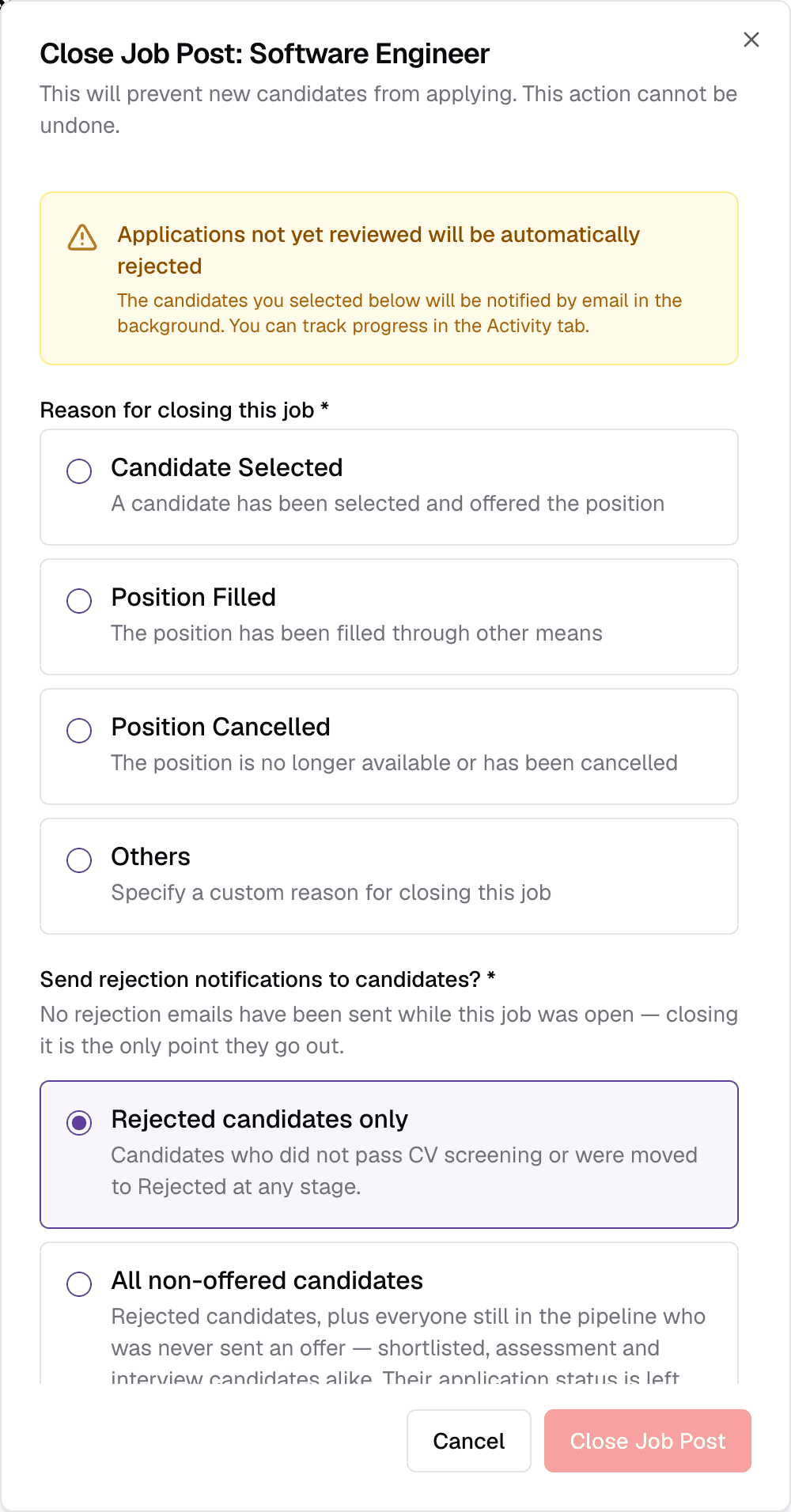
- 1Reason for closing this jobRequiredCandidate Selected · Position Filled · Position Cancelled · Others
- Shown on the closed job. Others asks you to type the reason.
- 2Send rejection notifications to candidates?RequiredRejected candidates only · All non-offered candidates · Don't send
- Who gets a rejection email. The default emails only candidates already marked Rejected.
- 3Close Job PostOptional
- Closes the job. Emails are sent in the background and appear in Activity.
Unreviewed applications are rejected
Reopen a job
A closed job shows Reopen Job at the top. Reopening publishes it again, lets candidates apply, and resets the posting date to today.
While a job is closed
- You can still view everything, download reports and CVs, and compare candidates.
- You can still record an offer as accepted or declined.
- Everything else — adding, inviting, moving or removing candidates, and editing the job — is locked.
Still have questions?
Pick a question — ChatGPT reads this page and answers it for you.