

DocsChat
AI Assistant
Ask in plain language to find, screen, compare and shortlist candidates or draft jobs.
The AI Assistant is a chat that works on your real hiring data. Ask in plain language — “Compare my top three applicants for the accountant role” — and it searches, scores, compares and drafts for you. Results come back as interactive cards you can click through.
Open the assistant
- Select AI Assistant in the left sidebar for the full chat page.
- On other pages, the AI Assistant button at the top opens the same assistant in a side panel, so you can ask questions without leaving what you are doing.
The chat page
truepick.ai/chat
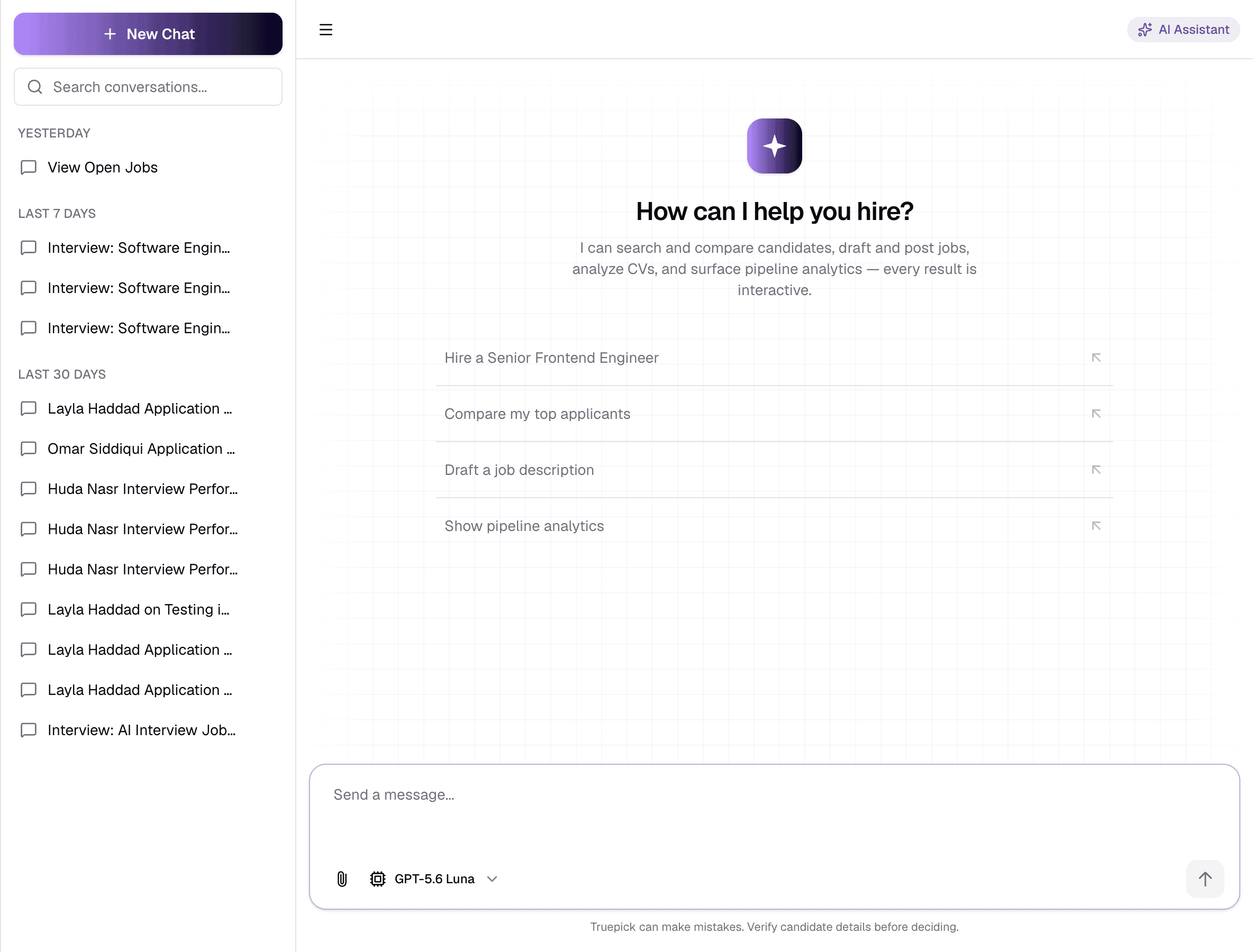
ItemWhat it does
- 1New Chat
- Start a fresh conversation.
- 2Conversation history
- Your past chats, grouped by date and searchable. Each has a ⋯ menu to Rename or Delete it. Titles are written automatically after your first message.
- 3Greeting
- Shown on a new chat, with ideas of what to ask.
- 4Suggested prompts
- Click one to send it — a quick way to see what the assistant can do.
- 5Message boxUp to 2,000 characters
- Type your request. Press Enter to send. While the assistant is replying, a stop button lets you cut it short.
- 6Attach filesPDF · Word · JPEG · PNG · up to 10 MB
- Attach a CV or document for the assistant to read — for example, attach a CV and ask it to add the candidate.
- 7Model
- Which AI model answers. You can change it only before the first message; start a new chat to switch.
Choosing a model
truepick.ai/chat
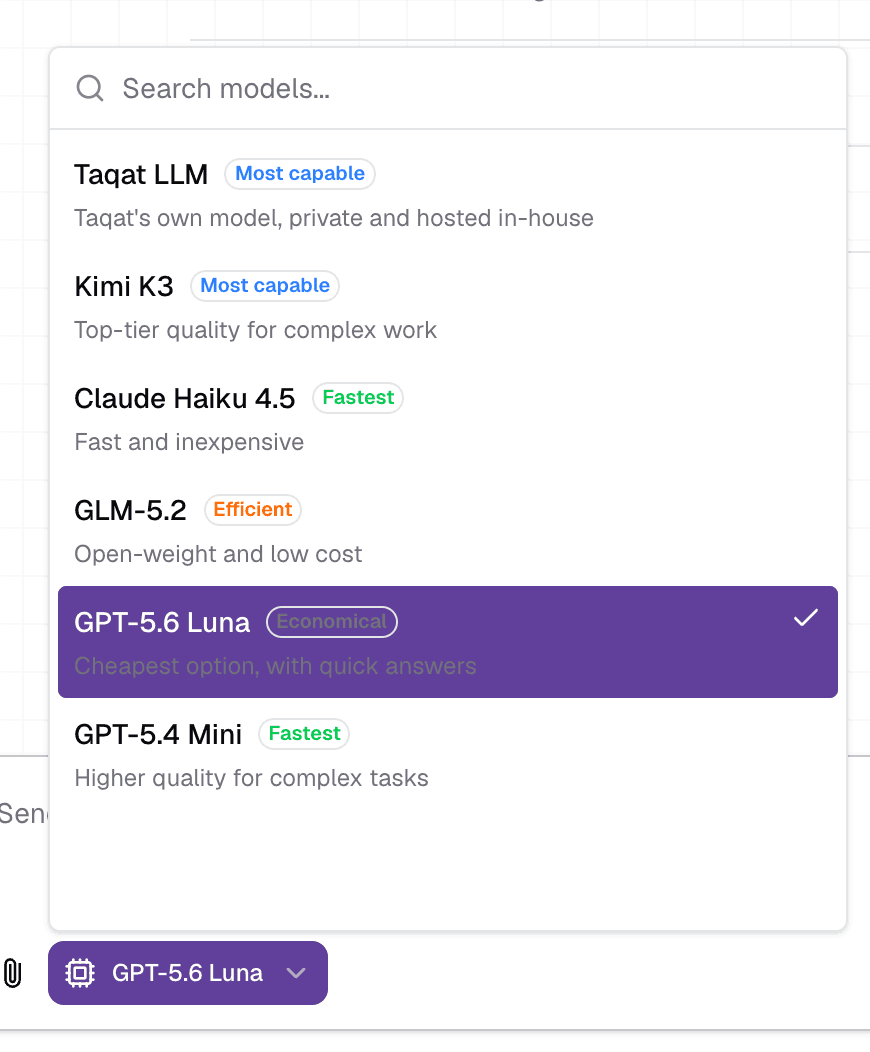
Each model is labelled — for example Most capable, Fastest or Economical. New chats start on your workspace's default model. Models marked text-only cannot read attachments, so the attach button is hidden for them.
A conversation
truepick.ai/chat
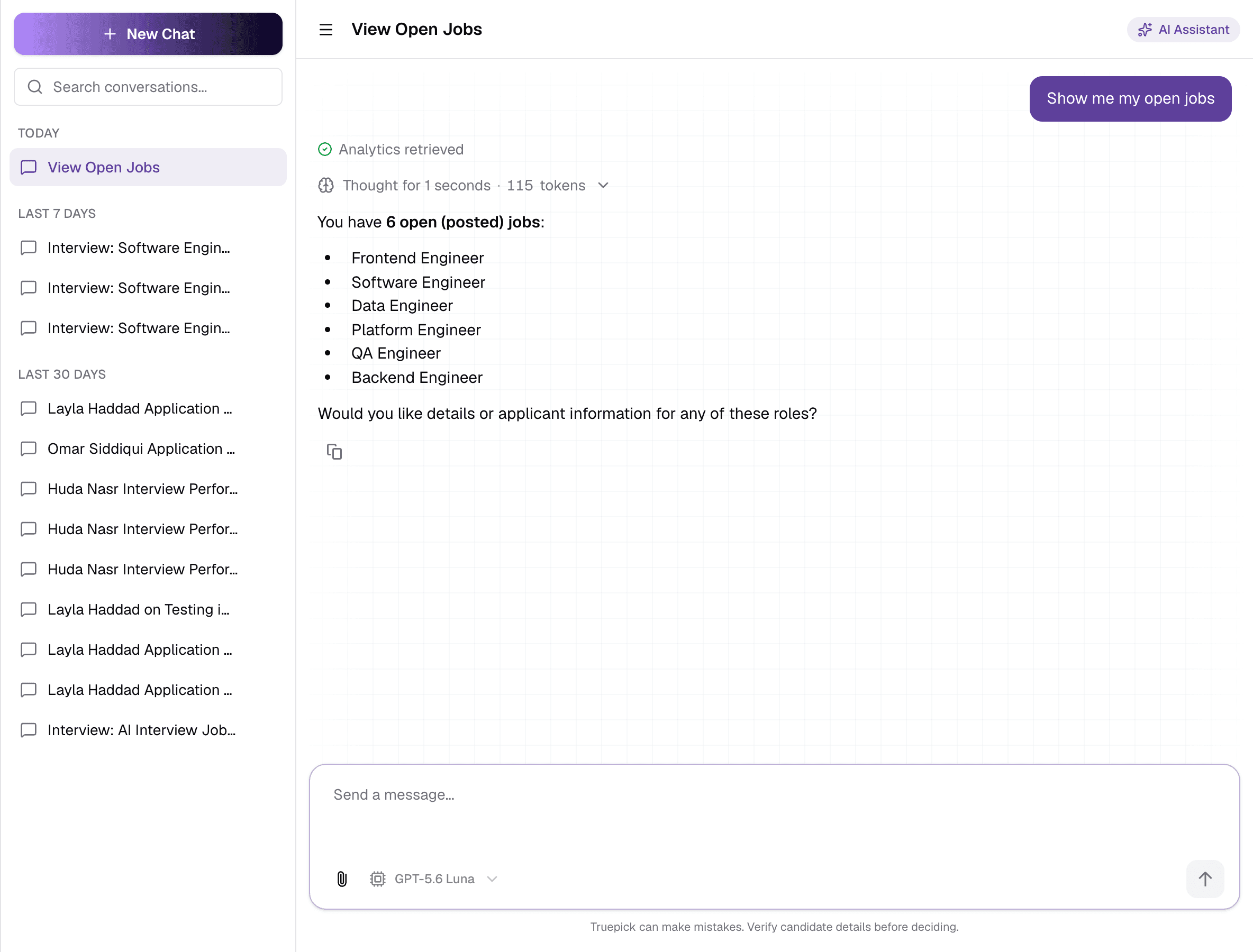
- The assistant may take several steps for one request — finding the job, then scoring candidates, then comparing them.
- Use the copy button under a reply to copy its text.
- When a chat gets very long, a Chat almost full notice suggests starting a new one to keep answers fast and accurate.
What the assistant can do
Jobs
Draft and post a job“Create a job for a senior accountant in Riyadh.” It shows you the full posting first and only posts after you reply yes.
List and open jobs“Show my open jobs.”
Update a job“Change the location of the data analyst job to Doha.” It shows old and new values before applying.
Job statistics“Which jobs have the most applications?”
Candidates
Search your pool“Find candidates with Python and team-lead experience.” Searches by meaning, not just keywords.
Add a candidateAttach a CV and ask the assistant to add the candidate. It checks for duplicates.
Look up an application“Why was Layla rejected?” — CV score and reasons, interview evaluation and transcript, assessment and fraud check.
Candidate statistics“How many candidates are at interview stage?”
Screening and ranking
Deep CV analysisScores one CV against one job, with strengths, concerns, missing skills and what to ask in the interview.
Best matchesRanks the best-fit people for a job from your whole pool, including people who never applied.
Compare candidatesSide-by-side comparison of 2 to 5 candidates for a job, with a verdict.
Build a shortlistRanks applicants and, after you confirm the preview, moves them to Shortlisted.
Interviews, assessments and data
Schedule an interviewBooks an interview for a shortlisted candidate and emails them a calendar invite — after you confirm the details.
Create an assessmentDrafts a skills test for you to review, then saves it once you confirm.
Ask about your data“How many people applied this week?” — answers questions across your hiring data.
It asks before it acts
Posting or updating a job, saving a shortlist, creating an assessment and scheduling an interview all show you a preview first. Nothing is saved or emailed until you confirm.
Good to know
- The assistant only helps with recruitment work — jobs, candidates, assessments, interviews and using Truepick.
- Every reply uses AI credit from your workspace. Your remaining budget is shown as AI budget at the bottom of the sidebar. When it runs out, the assistant stops replying until credit is added in Settings → Credits.
- A reply that takes too long is stopped, with a Try again button. Splitting a big request into smaller ones helps.
- The AI can make mistakes. Check candidate details before you decide.
Your chats are private to you.
Still have questions?
Pick a question — ChatGPT reads this page and answers it for you.