

DocsSettings
Email settings
Send from your own mail server, and which emails candidates get.
By default Truepick sends email for you. In Email Settings you can send it from your own mail server instead, so candidates see your company address.
truepick.ai/…
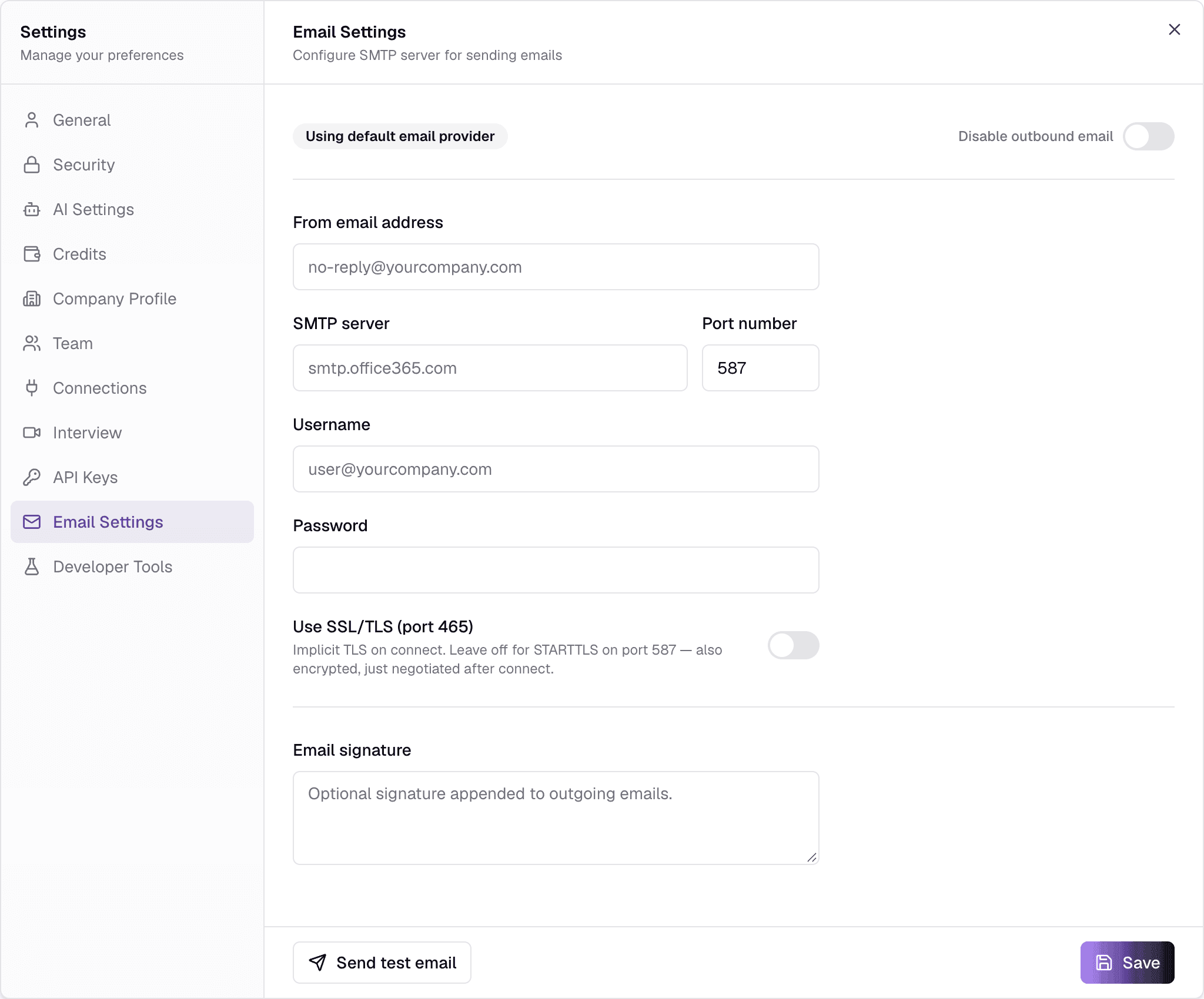
Using your own mail server
FieldWhat it does
- From email addressRequired
- The sender candidates see, e.g. careers@yourcompany.com.
- SMTP serverRequired
- Your mail server, e.g. smtp.office365.com.
- Port numberOptionalDefault 587
- Usually 587, or 465 with SSL/TLS.
- Username, PasswordRequired
- The mailbox login. Once saved, leave Password blank to keep it.
- Use SSL/TLS (port 465)OptionalOff by default
- Turn on only for port 465; 587 is encrypted after connecting.
- Email signatureOptional
- Added to the end of every email.
- Send test email sends a real test message to an address you enter, using the details you have typed.
- Save switches sending to your server. The badge at the top changes to Using your SMTP server.
- Use default provider removes your server settings and goes back to Truepick's own sending.
Disable outbound email
Stops every email at once
This switch pauses all email from your workspace — to candidates and to your team — and takes effect immediately, without Save. Use it only if emails must stop, for example while testing.
Which emails candidates get
Candidates are emailed automatically as their application moves on — when they apply, when their stage changes, for assessments and interviews, and when an offer is made.
Rejections wait for the job to close
Rejection emails are not sent while a job is open. When you close it, you choose who gets one: rejected candidates only, everyone not offered the job, or nobody.
Still have questions?
Pick a question — ChatGPT reads this page and answers it for you.