

DocsSettings
Connections
Connect Gmail, Google Meet, Teams, Zoom and more.
Connect the accounts Truepick works with. Connections belong to the workspace, so everyone on your team can use them.
truepick.ai/…
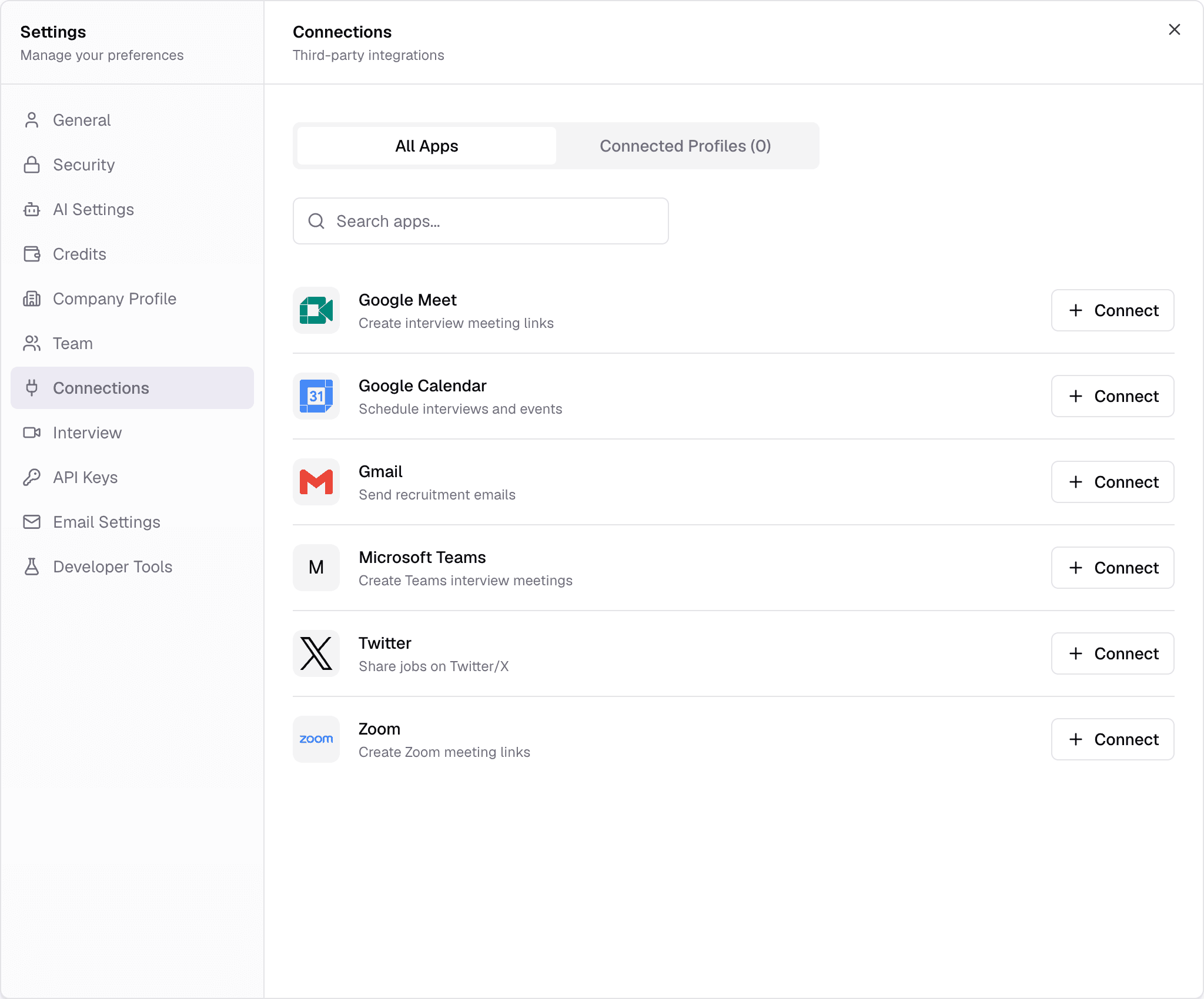
GmailCollect CVs that candidates email you. Turn it on per job under Application Sources.
Google MeetGenerate Meet links when scheduling face-to-face interviews.
Microsoft TeamsGenerate Teams links. Needs a work Microsoft 365 account that can create meetings.
ZoomGenerate Zoom links.
Google CalendarSchedule interviews and events.
TwitterShare jobs on Twitter / X.
Connecting an app
Click Connect
On the app in the All Apps tab.Name the connection
Give it a name you will recognise, such as “HR Gmail”, and click Connect.Sign in
A sign-in window opens for that service. Allow pop-ups for Truepick if nothing appears. When you finish, Settings reopens on Connected Profiles.
- Connected Profiles lists your connections with their status. A yellow warning means sign-in was not completed — connect again.
- The bin icon removes a connection. Anything that relied on it — such as Gmail CV collection or meeting links — stops working until you reconnect.
Still have questions?
Pick a question — ChatGPT reads this page and answers it for you.