

Edit a job
Change a live or draft job, and decide whether existing applicants are re-scored.
You can change any field of a draft or published job at any time. Existing applicants are never re-scored without asking — after you save, Truepick asks whether the change should apply to them too.
Open the editor
Find the job
From Jobs, open the row's ⋮ menu and choose Edit. Or, on the job page, open ⋮ More actions and choose Edit.Change what you need
The form is the same as when you created the job, already filled in. Every field is explained in Create a job.Save
Choose how to save — see below.
Closed jobs can't be edited
Saving your changes
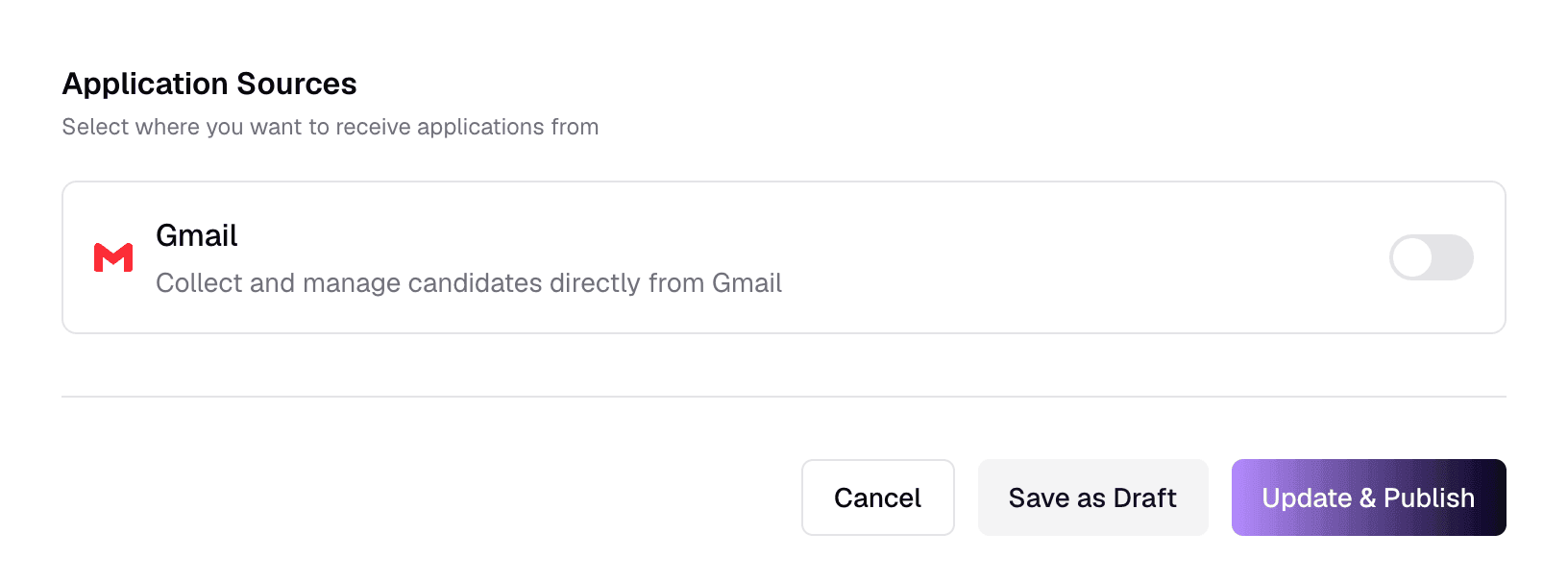
- 1Cancel
- Go back to the job without saving.
- 2Save as Draft
- Save and set the job to Draft. On a published job this takes it offline — candidates can no longer see or apply to it.
- 3Update & Publish
- Save and keep (or make) the job live. The original posting date is kept.
What happens to existing applicants
If the job already has applicants and you changed something that affects scoring, a dialog opens after saving. Choose Leave past candidates untouched to apply the change to new applicants only, or apply it to everyone:
- A rescan uses AI credit, the same as Rescan Applicants on the job page.
- Candidates who now pass the threshold move to Shortlisted; those who no longer pass move to Rejected.
- Candidates already interviewing, or further along, are never affected.
Interview questions after an edit
For AI Interview jobs, existing questions are kept as they are. If you change the description, requirements, skills, experience level, hiring brief or interview settings, the job page shows Questions may be outdated with a Regenerate button, so you decide when to replace them.
Switching the interview type
Changing a job from AI Interview to Face-to-Face removes its AI interview settings and generated questions.
Already sent AI interview invitations?
Still have questions?
Pick a question — ChatGPT reads this page and answers it for you.