

Assessments
Build skills tests, write or generate questions, and send them to candidates.
Assessments are skills tests candidates take online — multiple-choice, written and video questions, marked automatically. Build them under Assessments in the sidebar, then attach one to a job so candidates who pass the CV review take it next.
Your assessments
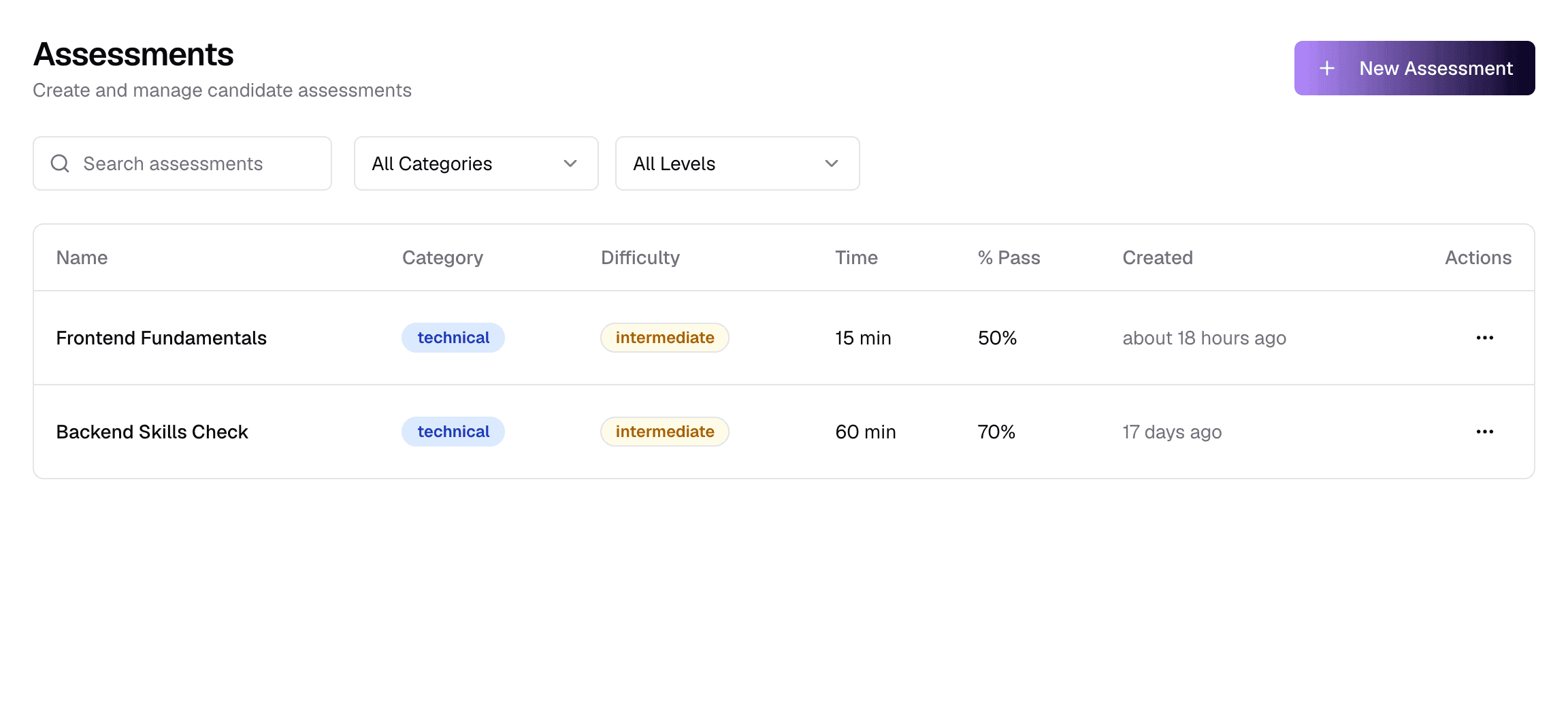
- 1Search
- Find an assessment by name.
- 2CategoryTechnical · Behavioral · Cognitive · Skills · Mixed
- Filter by category. Clear Filters resets search and filters.
- 3DifficultyEntry · Intermediate · Advanced · Expert
- Filter by difficulty.
- 4New Assessment
- Create one — see below.
- 5Time
- How long candidates have.
- 6% Pass
- The pass mark.
Click a name to open it. The ⋯ menu on each row has View, Edit (name, description, category, difficulty, time and pass mark), Clone (makes a copy) and Delete.
Assessments used by a job
Creating an assessment
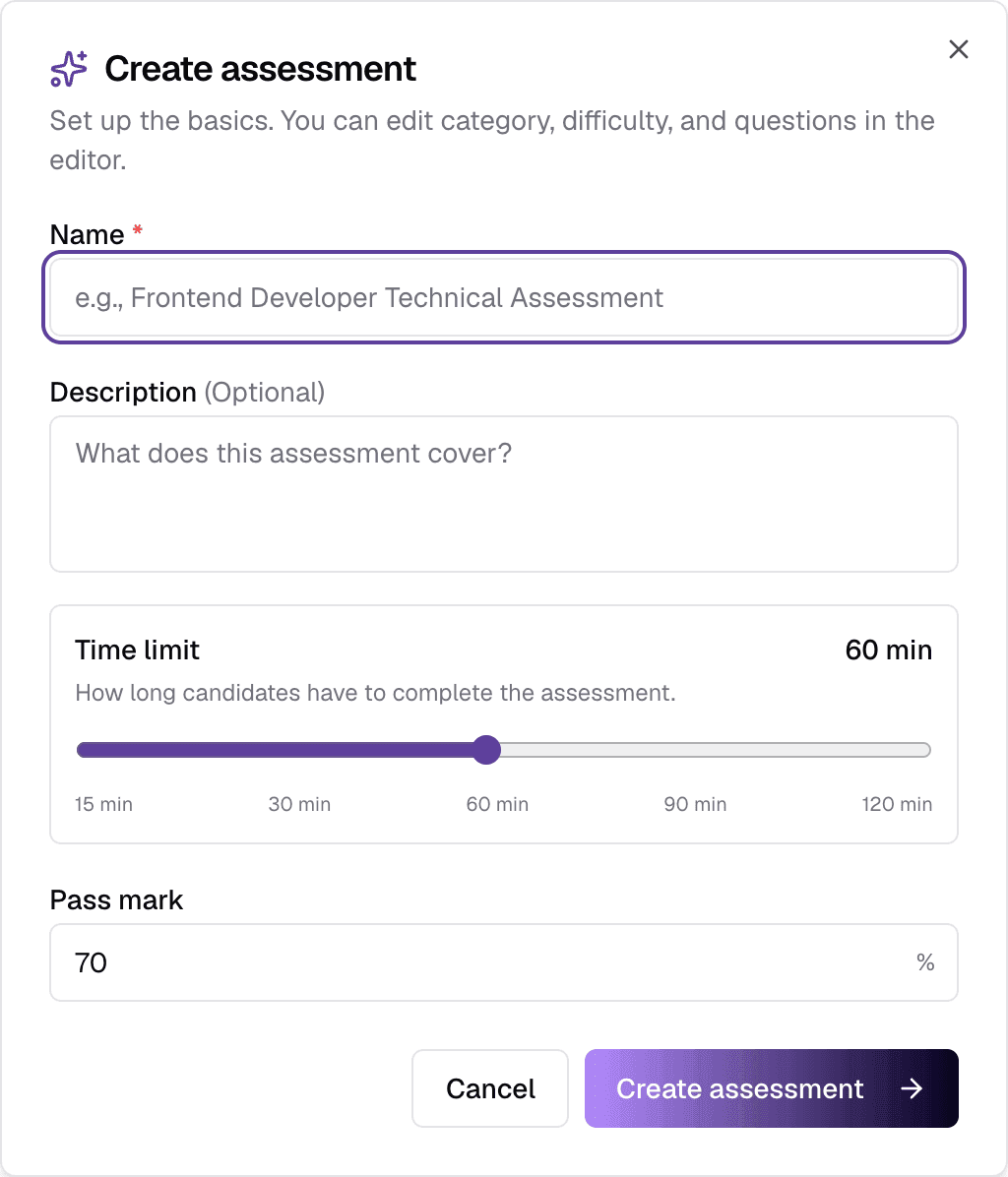
- NameRequiredUp to 200 characters
- What candidates and your team see, e.g. “Frontend Developer Technical Assessment”.
- DescriptionOptionalUp to 2,000 characters
- What it covers.
- Time limitOptional5–120 minutes · default 60
- How long candidates have once they start.
- Pass markOptional0–100% · default 70
- Candidates must score above this to pass.
Create assessment opens it in its workspace, ready for questions. Category and difficulty start as Technical and Intermediate — change them in Settings.
The assessment workspace
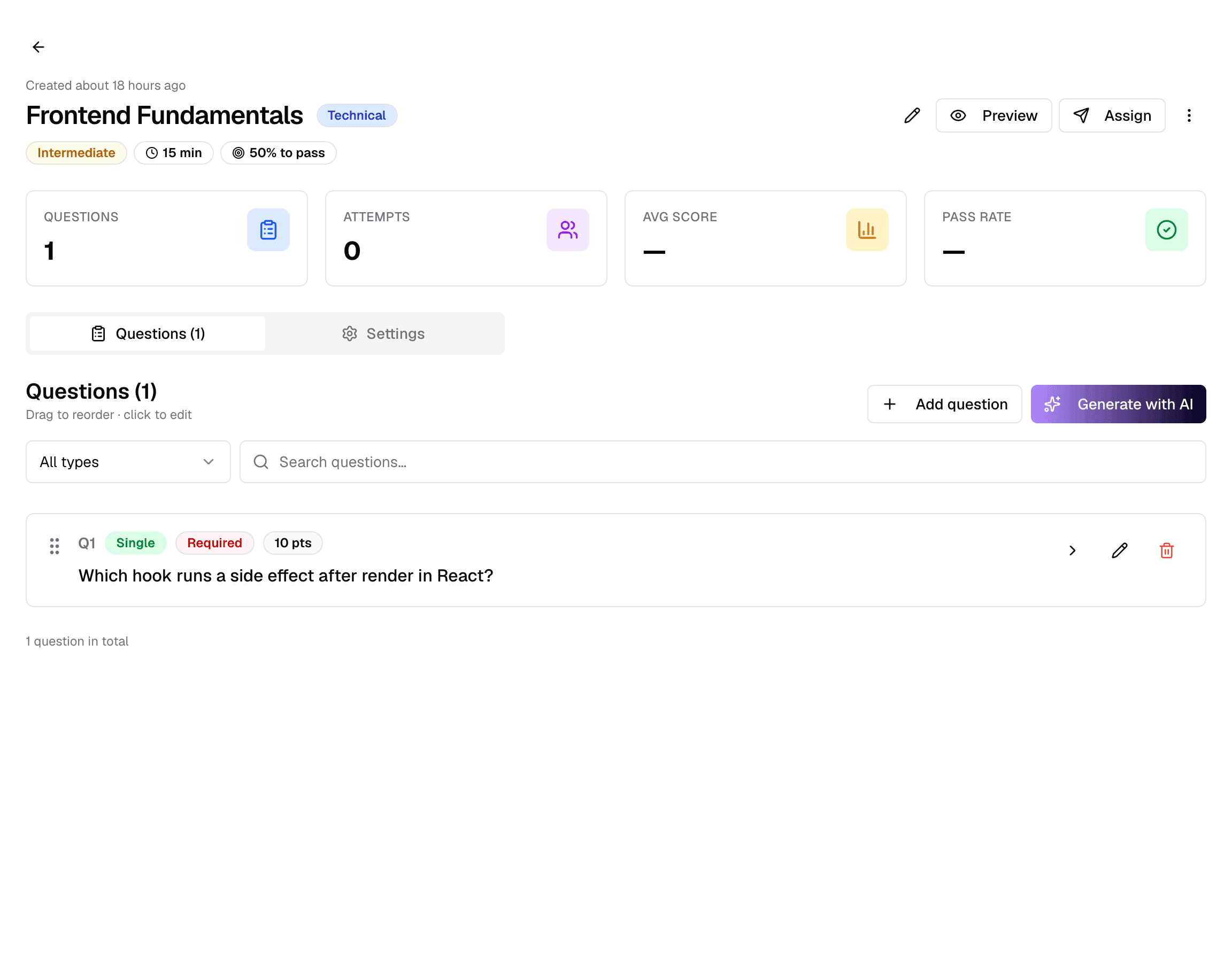
- 1Preview
- Take the assessment as a candidate would. Nothing is saved.
- 2Assign
- Send it to shortlisted candidates on a job — see below.
- 3Questions
- The question list and editor.
- 4Settings
- Category, difficulty, time, pass mark and more.
- 5Add question
- Write a question yourself.
- 6Generate with AI
- Let the AI draft questions from a job — uses AI credit.
The cards along the top show the number of questions, attempts, the average score and the pass rate. Click the pencil next to the title to rename it, and ⋮ → Clone to copy it.
Questions
Click Add question and choose the answer type. Each opens its own editor.
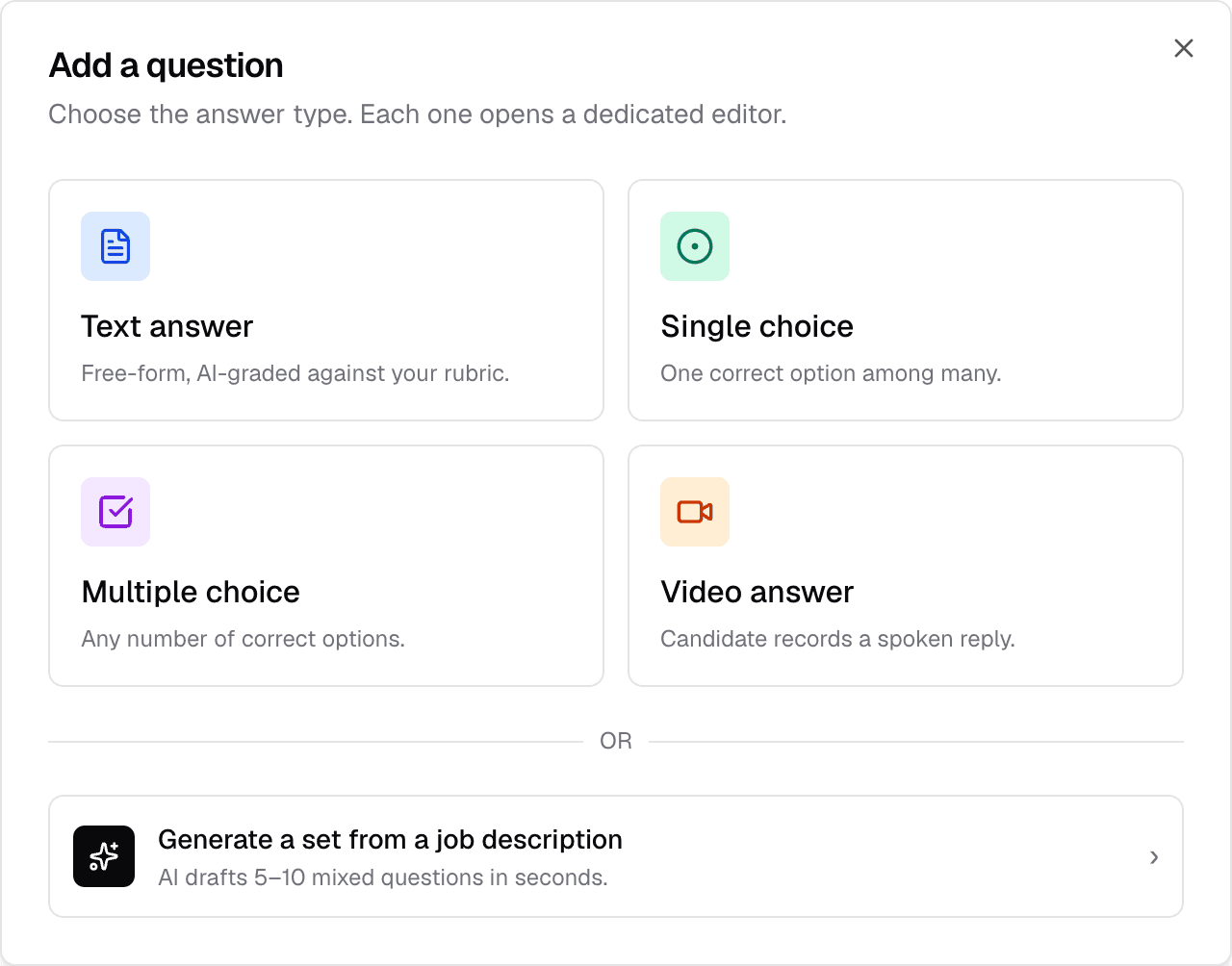
- Text answer — written answer, marked by the AI against your rubric.
- Single choice — one correct option.
- Multiple choice — any number of correct options, with optional partial credit.
- Video answer — the candidate records a spoken reply, which is transcribed and marked by the AI.
Writing a text question
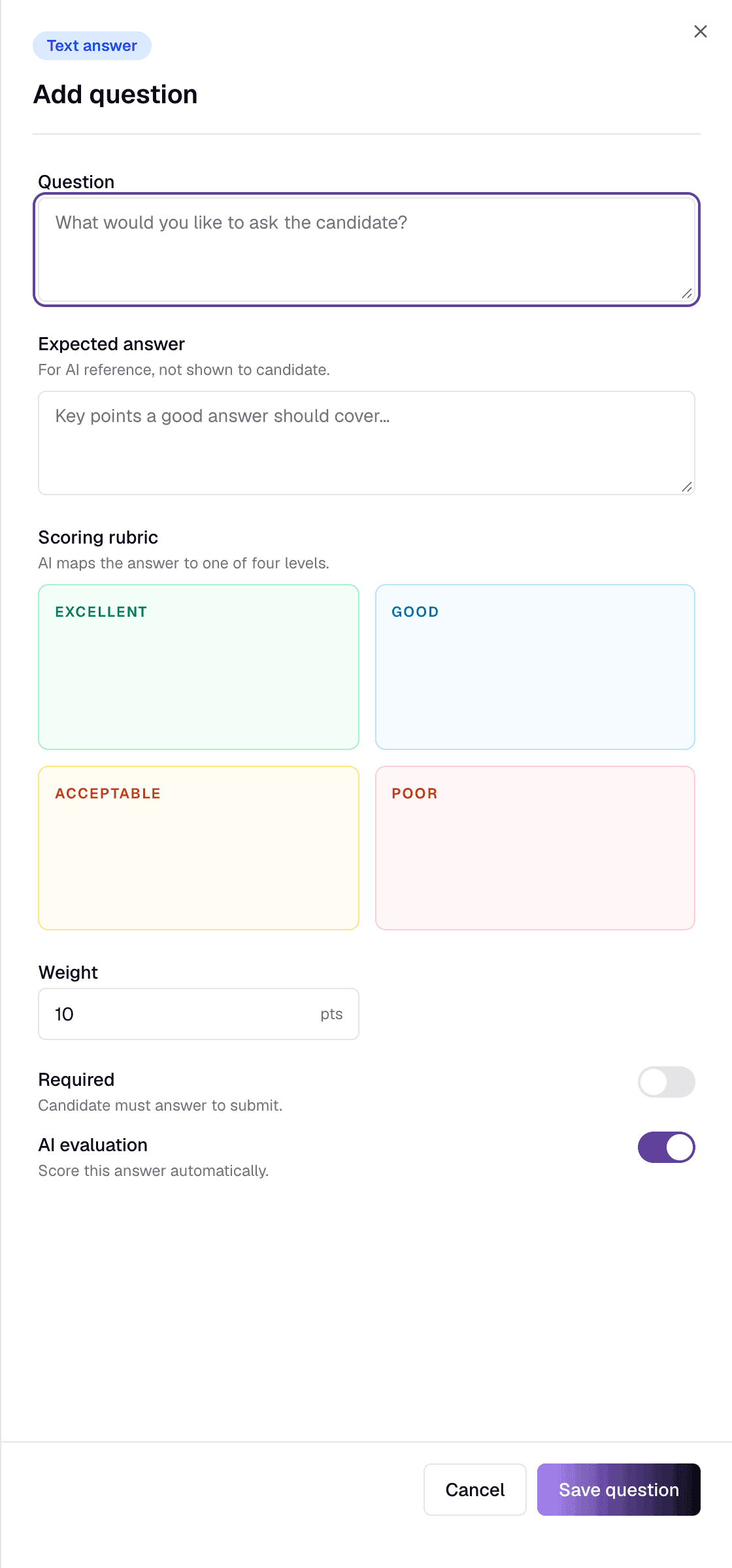
- QuestionRequiredUp to 1,000 characters
- What you ask the candidate.
- Expected answerOptional
- A model answer for the AI. Candidates never see it.
- Scoring rubricOptionalExcellent · Good · Acceptable · Poor
- Describe each level; the AI places the answer in one of them.
- WeightOptional1–100 points
- How much the question counts.
- RequiredOptionalSwitch
- The candidate must answer it.
- AI evaluationOptionalSwitch
- Mark the answer automatically.
- Choice questions have 2–10 options; mark the correct one(s).
- Video questions have a prompt, tips for the candidate, a recording limit (30 seconds to 10 minutes) and the criteria to judge it by.
- Click Save question. The type cannot be changed once saved.
Each question appears as a card with its type, points and whether it is required. Expand it to see the details, use the pencil to edit, or drag cards to change the order (saved immediately).
Generating questions with AI
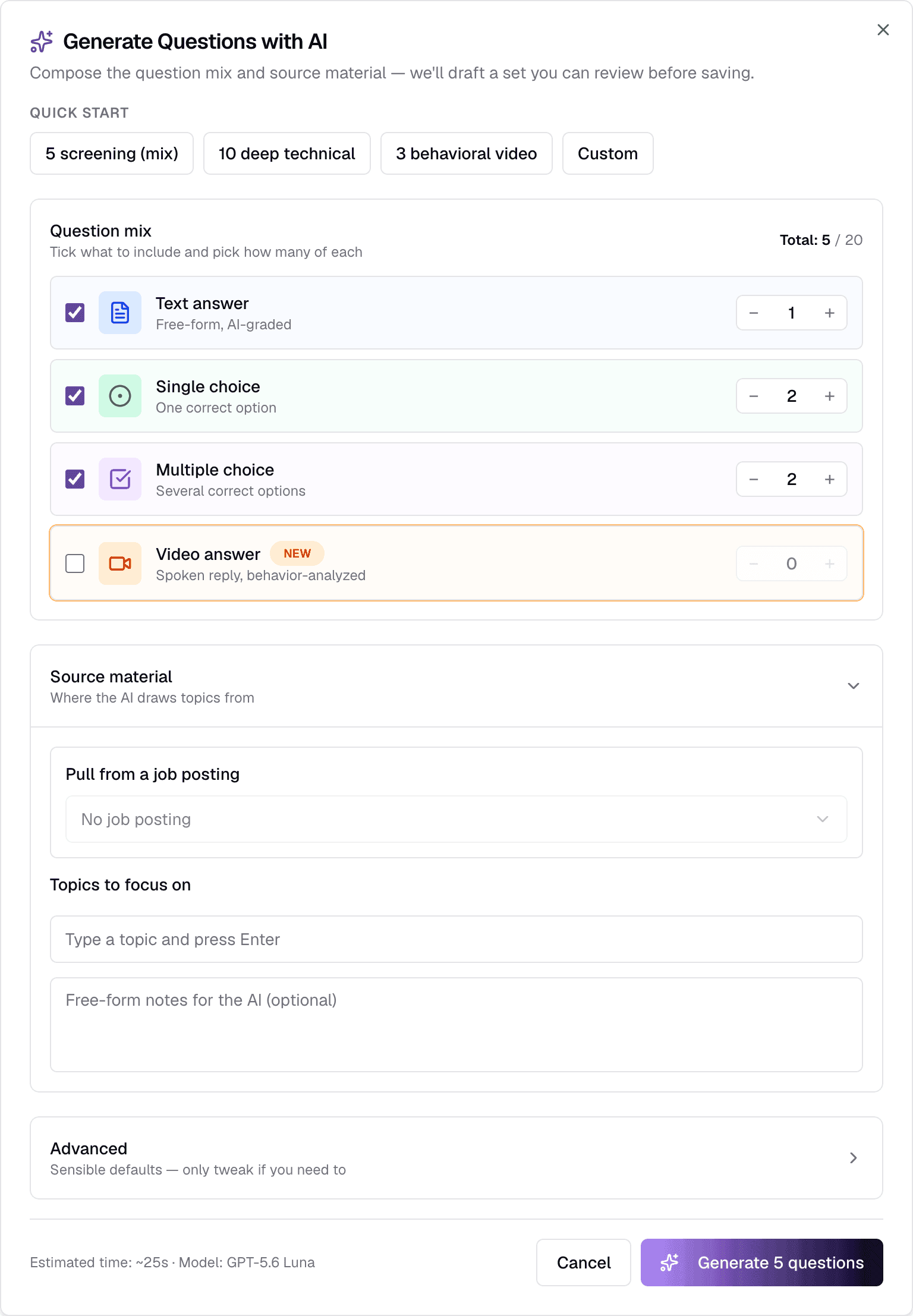
- Start from a preset — 5 screening (mix), 10 deep technical, 3 behavioral video — or set how many of each type you want, up to 20 in total.
- Pull from a job posting to base the questions on that job's requirements, skills, description and hiring brief. Add topics to focus on, or free-form notes.
- Generate drafts the questions. Nothing is saved yet: review them, tick the ones you want and click Import.
Uses AI credit
Previewing
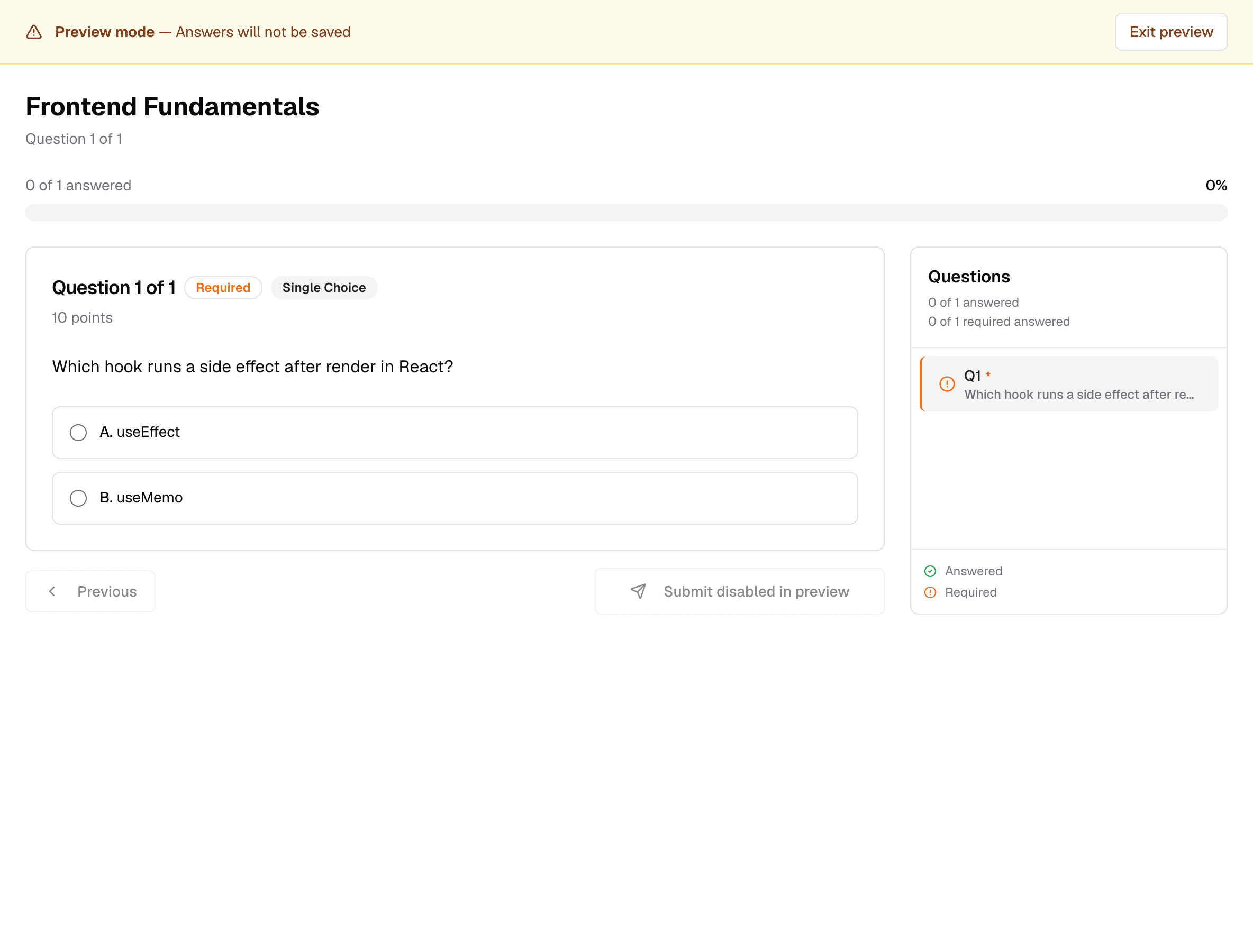
Preview lets you answer your questions as a candidate would, to check the wording and options. Nothing is saved and submitting is disabled; Exit preview returns you to the workspace.
Settings
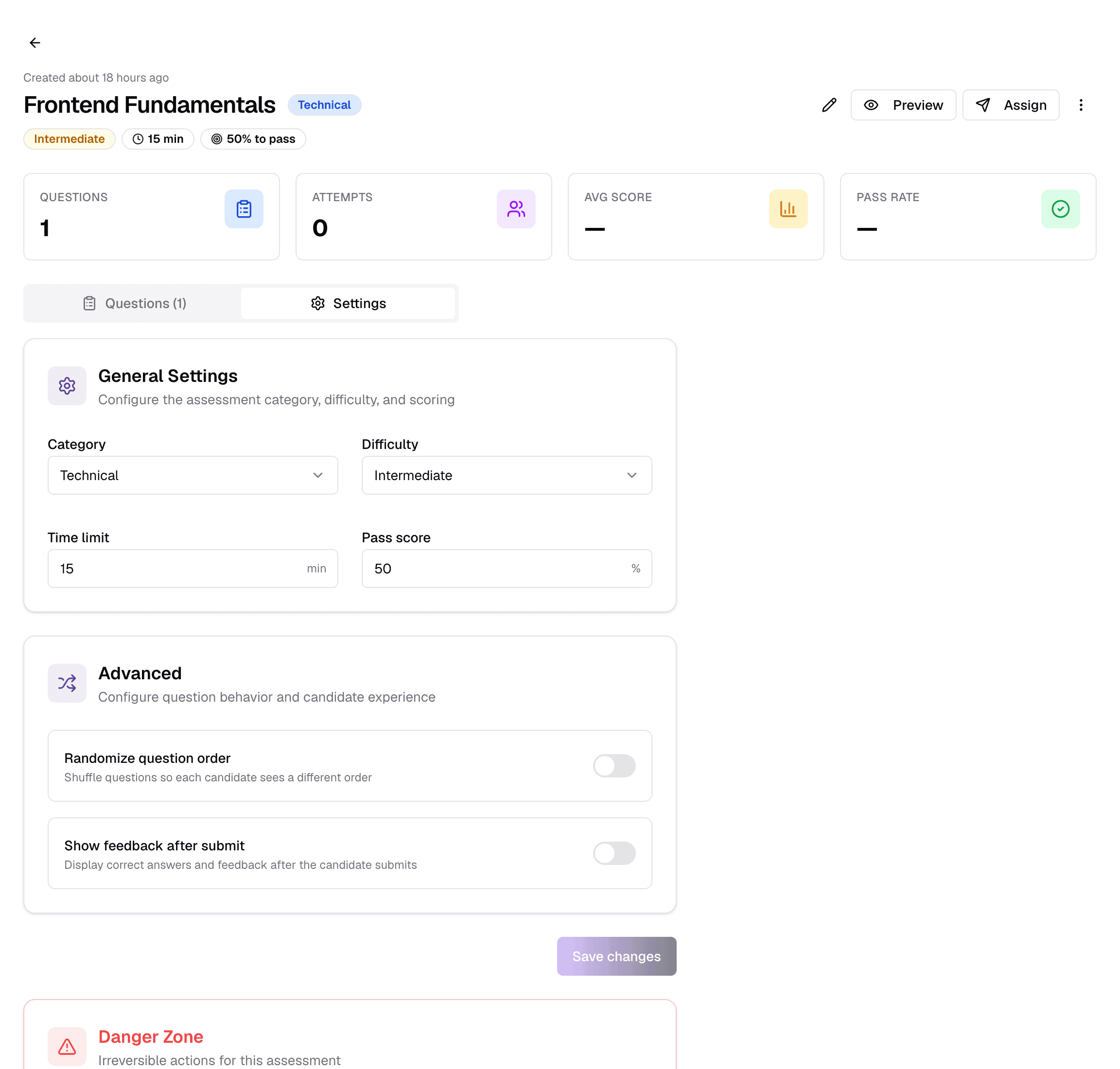
- General Settings — Category, Difficulty, Time limit (up to 240 minutes here) and Pass score.
- Advanced — Randomize question order and Show feedback after submit.
- Press Save changes. Delete assessment in the Danger Zone removes it and all its questions, permanently.
Using assessments with jobs
Automatically, for every applicant
On the job form, turn on Assessment Configuration and pick the assessment. Candidates whose CV passes move to Awaiting Assessment and are emailed the link straight away, with the job's Expiry Days as their due date.
By hand, to chosen candidates
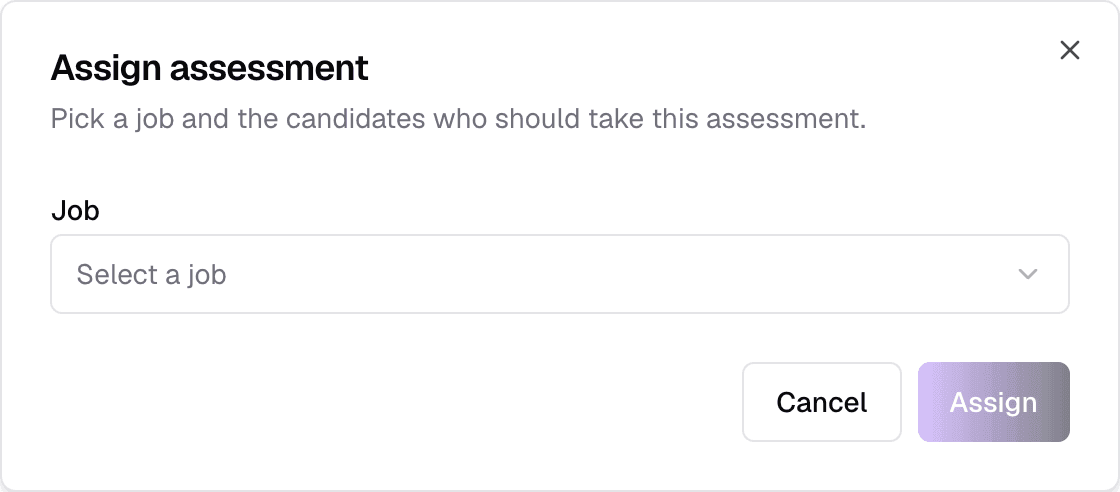
- Click Assign, choose a job, then tick candidates. Only shortlisted candidates can be assigned; closed jobs cannot be picked.
- Optionally make it Required and set a Due date.
- Assign emails each candidate their link and moves them to Awaiting Assessment.
Results
Each candidate's result is on their application (Assessment tab) and candidate profile: the score, Passed or Failed, every answer with the AI's feedback, and Screen integrity — how often they left the assessment screen. Passing moves the candidate to Shortlisted; failing rejects them.
Still have questions?
Pick a question — ChatGPT reads this page and answers it for you.